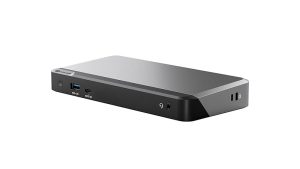
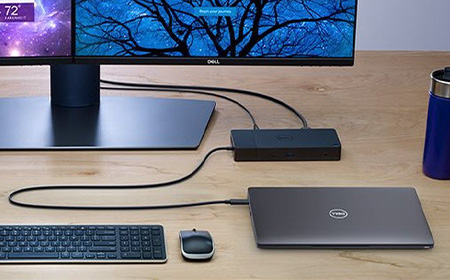
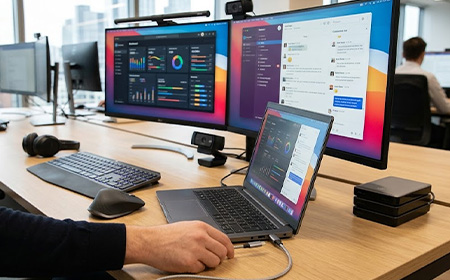
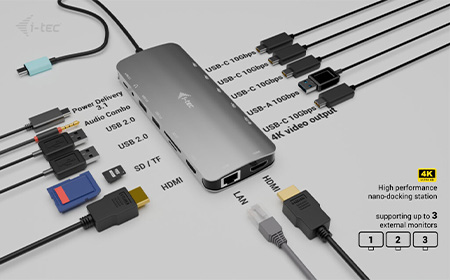
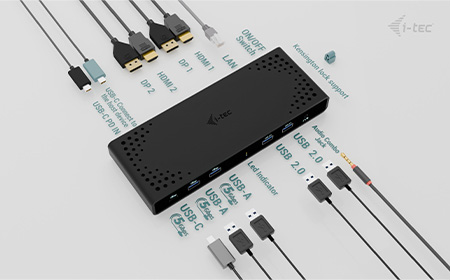
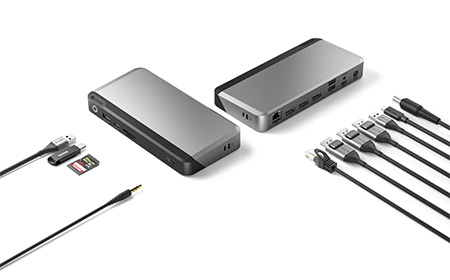
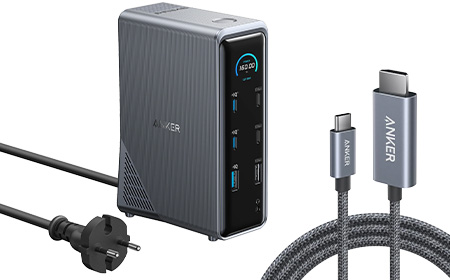
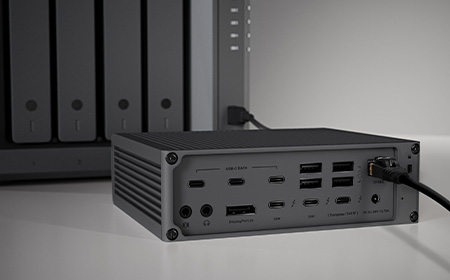
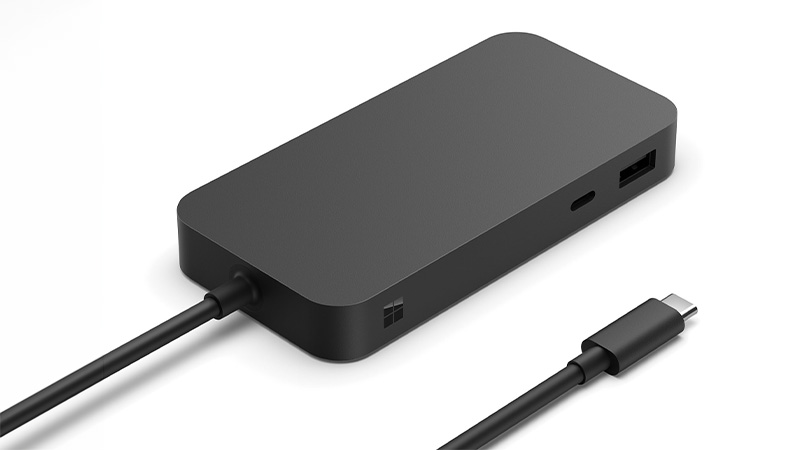
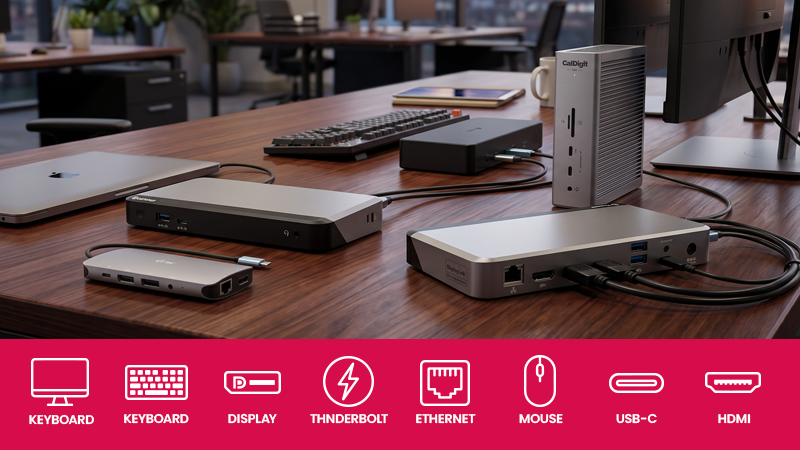
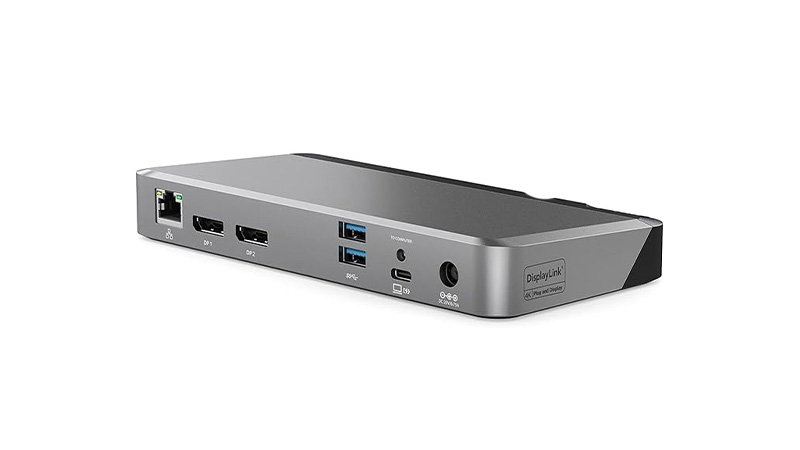
Lease Alogic docking stations to give your team reliable, single-cable connectivity that turns any laptop into a full desk setup, from a compact USB-C dual display dock for dual-monitor working to a triple 4K docking station built for demanding multi-screen workflows, with USB-C and DisplayPort connections, power delivery to keep devices charged, and consistent performance across your organisation – all on flexible monthly payments with no upfront cost and lifetime support included.
Smarter, streamlined productivity tools for your team
One Cable, Full Setup: Choosing the Right Docking Station for Work
This guide walks you through how to choose the right dock for your business, what the jargon actually means, and which of our docking stations fits which kind of team.
Quick Summary
If you’re equipping a team, the laptop is only half the setup. The other half is everything that turns it into a proper workstation and a good docking station does that with one cable.
Your people plug in once, and their laptop charges, their monitors wake up, and every peripheral reconnects exactly where they left it. No adapters, no tangle, no lost minutes at the start of the day.
For hybrid teams, hot-desking offices and laptop-first businesses, it’s one of the highest-impact upgrades you can roll out. We lease and manage IT for UK businesses every day, so we’ve seen what works on real desks.
This is the single most important factor, because it dictates how much your dock can actually do.
USB-C docks are the everyday workhorses. They’re affordable, widely compatible and more than enough for most office roles — email, documents, video calls, spreadsheets and dual monitors.
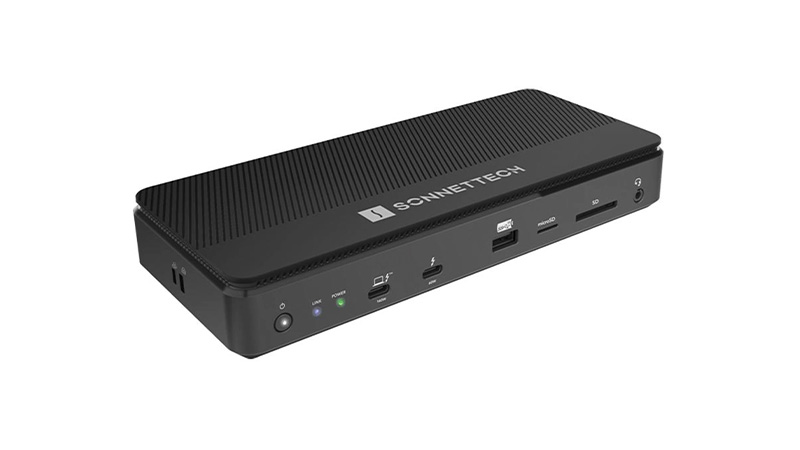
Thunderbolt docks (currently Thunderbolt 5) sit at the top end. They offer dramatically higher bandwidth, which matters when you’re driving multiple high-resolution displays and moving large files at speed — think creative, engineering, data and video work.
A quick check: your laptop needs to support the same standard to get the full benefit. A Thunderbolt 5 dock is brilliant on a Thunderbolt-equipped MacBook Pro, but plug it into a basic USB-C laptop and you won’t unlock its top-tier performance.
If you’re not sure what your devices support, that’s exactly the kind of thing our team will check for you before you order.
2. Power delivery (will it charge the laptop?)
Power Delivery, measured in watts (W), is how much charge the dock pushes back into your laptop through that single cable. Get this wrong and your laptop slowly drains even while it’s “plugged in”.
65–100W comfortably covers most ultrabooks, business laptops and MacBook Air-class machines.
140W is what you want for powerful, high-spec laptops and larger MacBook Pro models that draw more under load.
As a rule of thumb: match or exceed your laptop’s own charger wattage and you’ll be fine.
3. Displays and video outputs
Decide how many external monitors each person needs, and at what resolution, then check two things: the number of video ports and the type (HDMI, DisplayPort or Thunderbolt).
One or two screens for general office work → a dual-display dock is plenty.
Three screens for finance, trading, design, dev or operations → look for a triple-display dock.
Also confirm the dock supports the resolution you need (4K is the common business standard) across all the screens at once, not just one.
4. Ports and peripherals
Count what actually lives on the desk: keyboard, mouse, webcam, headset, phone charger, USB stick, SD card reader, external drive. Then make sure the dock has enough of the right ports — and ideally a couple to spare. A dock that runs out of ports on day one just creates a new pile of adapters, which rather defeats the point.
5. Wired networking and security
Most business-grade docks include a Gigabit Ethernet port. For office desks this is a genuine advantage: a wired connection is faster, more stable and more secure than Wi-Fi, which matters for video calls, large transfers and security-conscious environments. Every dock in our range includes Ethernet.
6. Compatibility — Mac, Windows, or both
Mixed device fleets are the norm now, so it pays to think about compatibility across your whole team. Some docks are happiest on Windows, some are tuned for high-spec Macs, and several are genuinely universal. If you run a blended Mac-and-Windows office, lean toward the universal options so any laptop can use any desk.
Not sure how to match these to your laptops? That’s the bit we’re here for. Tell us what your team uses and we’ll point you to the right dock — no guesswork required. Get in touch.
Our Recommended Docking Stations
Here are the docks we’d happily put on any business’s desks, from a tidy entry-level setup right up to a high-end creative workstation.
From £0.75/week · USB-C · 100W-140W power · 2× DisplayPort + 1× HDMI · Gigabit Ethernet
Small, light and seriously capable. The Nano 3x packs multi-display support, a generous 140W of charging and daisy-chain expandability into a compact body that’s perfect for hot desks and hybrid setups.
If you want the cleanest possible one-cable experience at the lowest cost, start here.
Ideal for: hybrid workers, hot-desking offices, anyone wanting maximum value.
From £1.75/week · USB / USB-C · 100W power · 2× DisplayPort + 1× HDMI · Gigabit Ethernet
The dependable office workhorse. It drives two crisp 4K displays, charges at 100W and plays nicely with both Windows and Mac, making it our go-to recommendation for blended teams who just want everything to work.
A comprehensive set of ports keeps the whole desk connected through one tidy cable.
Ideal for: general office teams running a mix of Mac and Windows laptops.
From £1.75/week · USB-C · 100W power · 3× DisplayPort · Gigabit Ethernet
When two screens aren’t enough, the DX3 steps up to three 4K displays without breaking the bank.
It’s the sweet spot for finance, operations, dev and anyone whose productivity lives across multiple windows at once — all from a single USB-C connection.
Ideal for: power users and high-productivity teams who need three screens.For Mac Users & Premium Desk Setups
From £2.95/week · USB-C · 140W power · 2× HDMI + 1× DisplayPort · Gigabit Ethernet
A premium 14-in-1 dock that does almost everything. Triple-display support, a strong 140W of charging and smart power management mean it comfortably handles demanding setups across Mac and high-spec Windows machines.
If you want plenty of ports and headroom in a single, polished unit, this is it.
Ideal for: premium multi-display users who want one dock to do the lot.For Touch-First & Interactive Work
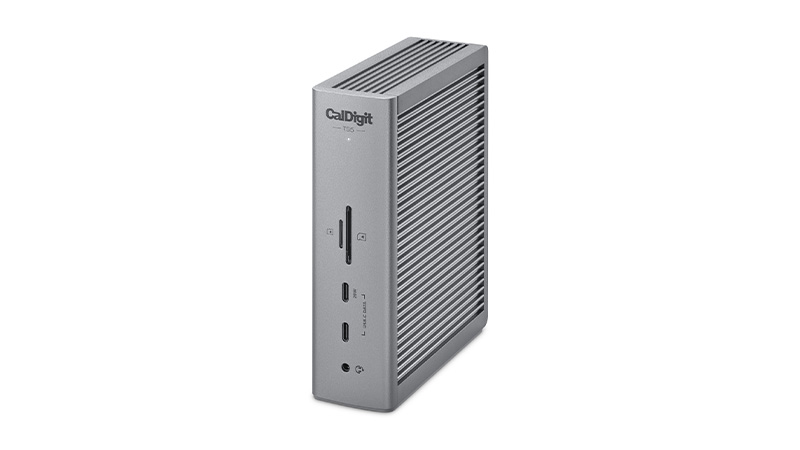
From £3.95/week · Thunderbolt 5 · 140W power · 15 ports · Gigabit Ethernet
This is where things get serious. With next-generation Thunderbolt 5 bandwidth, 15 ports and 140W charging, the TS5 is built for high-performance, multi-display environments where speed is non-negotiable. A favourite for high-spec Mac setups and demanding creative or technical work.
Ideal for: creative, engineering and data teams on Thunderbolt-equipped machines.For Multitaskers & Data-Heavy Roles
From £4.45/week · Thunderbolt 5 · 140W power · Thunderbolt 5 ports · Gigabit Ethernet · Built-in NVMe SSD
Our top-of-the-range pick. The Echo 13 combines blazing Thunderbolt 5 connectivity and 140W charging with integrated high-speed SSD storage — so editors, photographers and anyone working with huge files get expansion, power and lightning-fast local storage in one unit. The cleanest possible high-end workstation.
Ideal for: high-end creative workstations that move large files all day.For Hybrid Workers & Call-Heavy Roles
We’ve been kitting out UK businesses for 40 years, and a docking station is rarely bought on its own — it’s part of a wider setup of laptops, monitors and accessories. Leasing it all together, on one simple monthly agreement, keeps things tidy and affordable.
Discover docking stations designed to expand your device’s connectivity and transform your workspace. From multi‑display setups to fast charging and high‑speed ports, our range helps you streamline cables, boost productivity and create a clean, efficient workstation.
Find the right docking station to connect more, work smarter, and simplify your setup.
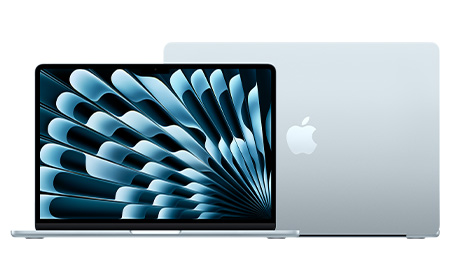
MacBook Neo vs Air: Performance, Value, and What Businesses Should Know
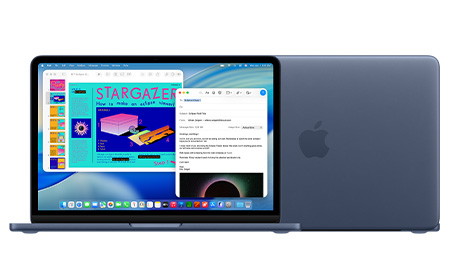
This guide compares the MacBook Neo and the MacBook Air M5 for business teams — what each one offers, the specs that actually matter at work, and how to match the right machine to the right role.
Quick Summary
These are Apple’s two most affordable laptops but they’re built on different foundations.
The Neo runs an A-series chip — the same A18 Pro found in the iPhone — while the Air runs Apple’s M5 silicon. That single difference shapes everything: memory, connectivity, and how each machine copes with a heavy day’s work.
On leasing, the Neo starts from around £3.72 +VAT per week and the Air from £6.91 — so the Neo is close to half the cost. But cost is only half the decision. The rest comes down to what your people actually do all day.
The Neo is the most affordable Mac Apple has ever made, and for a large slice of any workforce it’s all the laptop they need.
Performance. The A18 Pro pairs a 6-core CPU with a 5-core GPU and a 16-core Neural Engine, with Apple Intelligence built in. It flies through the everyday: email, Microsoft 365 and Google Workspace, web-based CRMs, video calls and general multitasking. It’s a phone-class chip, so it’s not built for sustained heavy lifting — but most business roles never ask it to.
Memory. The Neo has 8GB of unified memory, with no option to add more now or later. That’s comfortable for someone living in a couple of apps and a handful of tabs. However, if you push it with dozens of tabs plus several apps at once, it starts to feel tight. See How Much RAM Should You Order in Your Next Mac? for why this matters over a multi-year lease.
Connectivity. Two USB-C ports (one fast 10Gbps, one basic USB 2.0), Wi-Fi 6E, and support for one external 4K display. There’s no Thunderbolt, so a busy dual-monitor dock is out of the box — though a USB-C dock solves most of that (more below).
Display, battery and build. A bright 13″ Liquid Retina screen (500 nits, a billion colours), up to 16 hours of battery, a silent fanless design, and four colours to choose from. Note two trade-offs: Touch ID is only on the 512GB model, and there’s no backlit keyboard or fast charging.
The Air is the default “everyday professional” Mac — noticeably more capable under the hood, and built to stay comfortable across a longer lease.
Performance. The M5 steps up to a 10-core CPU, up to a 10-core GPU, and more than twice the Neo’s memory bandwidth. That headroom is what keeps things smooth when the workload is sustained — heavy multitasking, larger datasets, creative apps, and anything that runs hard for long stretches without slowing down.
Memory. The Air starts at 16GB and configures up to 32GB. On Apple Silicon, memory is the single biggest factor in how well a machine ages, so this is the spec that most justifies the extra weekly cost for demanding roles — and the main reason not to under-spec someone you’re equipping for three years.
Connectivity.Thunderbolt 4 plus MagSafe charging, and support for multiple external displays. This is the practical difference for desk-based staff: full docking, faster peripherals, and a proper multi-monitor setup from a single connection.
Display, battery and build. A choice of 13.6″ or 15.3″ Liquid Retina — useful when someone wants more screen without moving up to a MacBook Pro — plus up to 18 hours of battery, a backlit keyboard, fast charging, and Touch ID as standard.
Both machines make great desk workstations with the right accessories — and you can easily add these to any lease with HardSoft.
A USB-C or Thunderbolt docking station turns a single laptop port into a full desk, complete with an external display, wired network, and charging.
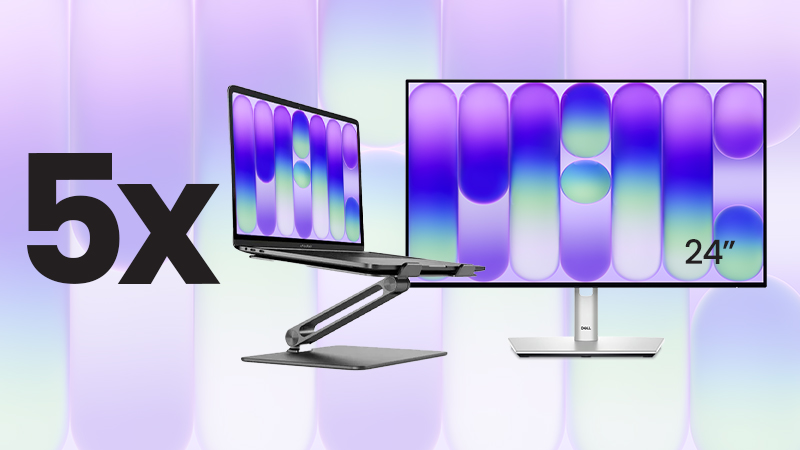
For teams standardising on the Neo, we’ve packaged it up: the MacBook Neo Desktop Bundle pairs five 512GB Neos (with Touch ID) with Dell 24″ USB-C hub monitors and Alogic stands that lift the screen and help airflow on the fanless chassis. That’s five complete workstations for £39 +VAT per week (around £7.80 a desk).
Matching the Machine to the Role
Role
Best Fit
Why
Admin, operations & reception
Neo
Email, 365/Workspace, web CRMs — smooth, silent, cost-effective
Frontline, field & retail
Neo
Point-of-sale, scheduling, a browser — no headroom wasted
New starters & second devices
Neo
Fast, affordable and easy to deploy at scale
Sales, account management & leadership
Air
All-day calls, presentations and endless tabs fill 8GB fast
Marketing
Split
Neo for writers and social; Air for designers and heavier creative
Design, development & power users
Air (min.)
Adobe, IDEs, Docker and simulators need M5 and 16GB+
The Leasing Maths
Bought outright, the Neo (£699) and the Air (£1,299+) are £600 apart per person — a gap that grew after Apple’s June 2026 price rises. Spread across a lease, the gap is about £3.19 a week per device. Leasing makes the price gap small enough to choose each laptop for the job, not the price tag.
For a typical team, the Neo is the smart, cost-effective choice — admin, reception, frontline, retail and single-app roles, and with a dock or the Desktop Bundle it makes an excellent office workstation too.
For the people who multitask heavily, work docked across multiple monitors, or run creative and development tools, the Air’s M5 chip, 16GB+ memory and Thunderbolt aren’t a luxury — they’re what keeps those roles productive across the life of the lease.
So it’s rarely “Neo or Air” for the whole business. The best answer is usually both, matched to how each person works — and because leasing narrows the cost gap to a few pounds a week, that mix is easy to build and easy to adjust as your team changes.
Lease the Neo from under £4 a week, or the Air from under £7. Speak to our team to map the right setup for your business.
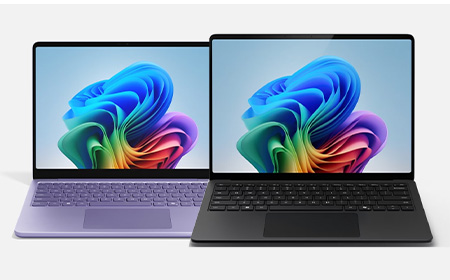
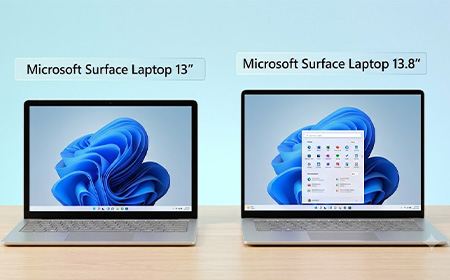
Surface 13″ vs 13.8″: Does 0.8 Inches Actually Matter?
Two Copilot+ PCs, 0.8 inches apart on paper — but very different machines underneath. Here’s how the Surface Laptop 13″ and Surface Laptop 13.8″ compare for IT teams leasing across a business, and which model belongs with which role.
Quick Summary
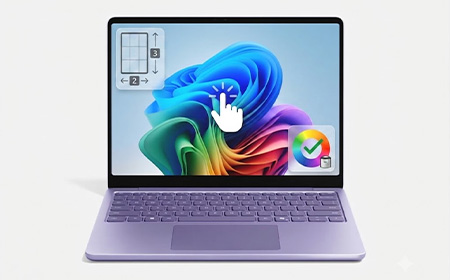
On paper, the Microsoft Surface Laptop 13″ and the Surface Laptop 13.8″ (8th Edition) sit a fraction of an inch apart. Both are Copilot+ PCs, both run Intel Core Ultra (Series 3) silicon, and both have a 3:2 PixelSense touchscreen.
But when you look closer 0.8 inches turns into a meaningful fork in the road: different displays, different specs and different features.
For IT teams and business owners about to lease these across a team, those differences shape who gets which device.
Both panels are 3:2, touch-enabled, and individually colour-calibrated. That’s where the similarity ends.
Display
Surface 13″
Surface 13.8″
Resolution
1920 × 1280 (178 PPI)
2304 × 1536 (201 PPI)
Refresh rate
Up to 60 Hz
Up to 120 Hz
Brightness
500 nits
600 nits
Contrast
1000:1
1300:1
HDR / Dolby Vision IQ
No
Yes
For email, documents, and Teams, the 13″ panel is genuinely good. For anyone working with images, video, dashboards, or design tools all day, the 13.8″ is a different class of display — sharper, brighter, smoother, and HDR-accurate.
The 13″‘s Intel Core Ultra 5 handles typical office workloads comfortably. What it can’t do is scale as far: 24GB of RAM is the maximum. For finance teams, analysts, developers, and anyone running large datasets, the 13.8″ is the only one of the two that has the headroom — up to 64GB with options up to Intel Core Ultra 7 and X7.
Both deliver the same 50 TOPS NPU (Intel AI Boost), so all Copilot+ features (Recall, Click to Do, Studio Effects, AI-powered search) run identically on either.
Models and Configurations
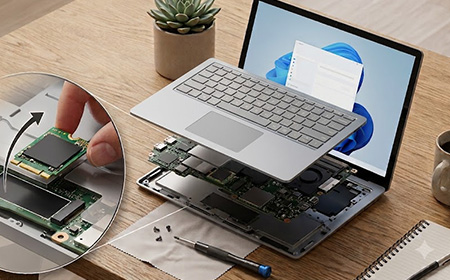
Both laptops come in the same core build options — your choice of processor, 256GB / 512GB / 1TB storage, and (on the 13.8″) up to 64GB RAM — all on a removable Gen 4 SSD.
Where they differ is the security hardware you can add at order. The 13″ comes in standard configurations only. The 13.8″ can be ordered as standard, or specced with two business-grade extras:
Integrated privacy screen — a built-in filter that narrows the viewing angle so on-screen content stays unreadable to anyone beside or behind the user. Ideal for finance, legal, HR, or anyone working with sensitive data in open-plan offices, on trains, or in client sites.
Smart Card Reader — a built-in reader for physical smart-card authentication, often a requirement in government, healthcare, and other regulated or high-security environments.
Both share the same USB-A 3.2 port and DisplayPort 2.1 over USB-C.
Two things to flag here. First, the 13″ charges over USB-C and ships with a 45W USB-C wall charger (in select markets and configs); for faster charging you’ll want a 60W+ USB-C PD charger.
Second, the 13″ has no Surface Connect port. If your business is already standardised on Surface Dock infrastructure, the 13″ won’t slot in — you’d be looking at USB-C docks instead.
USB4 on the 13.8″ runs at four times the bandwidth of the 13″‘s USB 3.2, and supports a third external 4K display.
Security and Biometrics
Both are Windows 11 Secured-core PCs with Microsoft Pluton TPM 2.0 and full Microsoft Defender support, so they’re equally manageable from an IT fleet perspective.
Biometrics is where they differ:
Surface 13″: Windows Hello fingerprint reader built into the power button
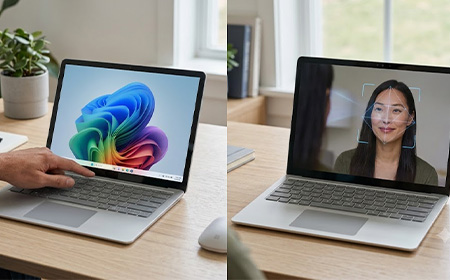
Surface 13.8″: Windows Hello facial recognition with Enhanced Sign-in Security
For hot-desking, frequent docking and undocking, or regulated environments where face authentication is preferred for compliance, the 13.8″ has the edge.
Neither model supports pen input. Teams that need pen-and-touch should look at the Surface Pro instead.
Which Should You Lease, and for Whom?
For most teams, the Surface Laptop 13″ is the smart default. It’s lighter, cheaper, and shares the things that actually matter day-to-day with its bigger sibling: the same 50 TOPS Copilot+ NPU, the same removable Gen 4 SSD, Windows 11 Pro, and Secured-core management. So the AI features, the security posture, and the IT manageability are identical.
Reserve the Surface Laptop 13.8″ for the roles that really need more: anyone scaling past 24GB of RAM, driving a triple-4K dock, leaning on the sharper 120Hz HDR display for design or data work, or where face-unlock is a compliance requirement. For those people the premium is money well spent. For everyone else, it isn’t.
Not All Monitors Are Equal: How to Choose the Right One for Work
Stop treating monitors as an afterthought. Match the right screen to each role and your team works faster, with tidier desks and less friction.
Quick Summary
If you’re rolling out monitors across your business, the right choice rarely comes down to the spec sheet. It comes down to how each person actually works.
Some people need more space. Some need colour accuracy. Some are in back-to-back calls. And plenty just need something reliable that sets up in one cable.
This guide breaks that down properly. We’ll match real-world roles to the right type of monitor — and point you to the specific models from the HardSoft monitor range that fit each one.
We’ve been kitting out UK businesses for 40 years, so these aren’t generic picks — they’re the displays we actually put on people’s desks.
The Problem Most Businesses Run Into
Most businesses pour time into choosing laptops and desktops, then treat the monitor as an afterthought.
Which is odd, because the monitor is the thing your team stares at all day.
Get it wrong and you’ll feel it:
Too little screen space means constant alt-tabbing between windows
Poor clarity means eye strain and slower work
The wrong setup means messy desks, extra dongles and accessories nobody asked for
Get it right and everything just flows — cleaner workflows, less friction, better output. The trick is to stop comparing specs first and start with a simpler question:
What does this person actually do all day?
That answer will lead you to the right monitor faster than any spec comparison. Here’s how it breaks down by role.
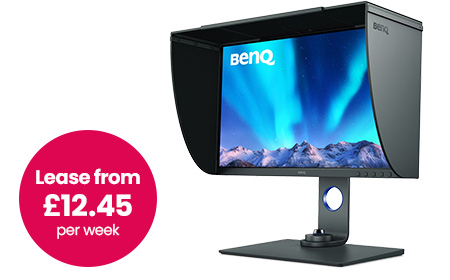
If your team works with visuals — photography, design, retouching, anything heading to print — colour accuracy is a must. A colour that looks right on screen but prints wrong costs time and money.
This is the one built specifically for that job. It’s a 27″ IPS 4K display (3840 × 2160) with factory calibration, so it’s accurate out of the box — no second-guessing on day one.
Plus you get:
USB-C with 90W power delivery — charges a laptop and carries video over a single cable
Built-in SD card reader for photography workflows
Included shading hood to cut glare on colour-critical tasks
Your team will spend less time fighting colours, get consistent results across devices, and work with confidence.
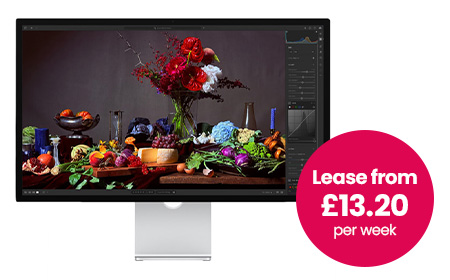
When a single creative display isn’t enough — think design-heavy teams, video editors, or anyone working across large, detailed canvases — this is the step up.
It’s a 32″ 6K Nano IPS Black panel with HDR and genuinely deep blacks, driven by a single Thunderbolt 5 cable.
Best for: studios and design-led teams who want one display to do everything.
For Mac Users & Premium Desk Setups
Some teams — leadership, client-facing roles, design-led businesses — want a clean, high-end setup where the screen looks as premium as the work on it. With Mac users especially, the right display also just feels like part of the machine.
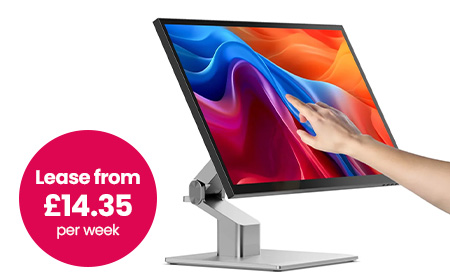
If your team sketches, annotates, presents or works hands-on with their designs, a touchscreen display changes how they work. These are a HardSoft favourite for design studios and creative agencies.
A 27″ 5K display you can actually touch and draw on — factory-calibrated colour with stylus support, so it’s equal parts colour-accurate monitor and digital canvas.
27″ 5K with accurate, high-resolution detail
Full touchscreen with stylus support for sketching and mark-up
Single-cable USB-C setup, plus HDMI and DisplayPort
The same 5K touchscreen, but on a fold-flat hinge. Lay it nearly horizontal to draw, annotate or sign like a drafting table, then stand it back up as a standard display. It’s the most flexible screen in the range for hybrid creative and presenting setups.
27″ 5K fold-flat touchscreen with stylus support
Drops flat for drawing and mark-up, back up for everyday work
USB-C with 65W charging, plus HDMI, DisplayPort, USB-A and USB-B
A curved ultrawide that often replaces a dual-monitor setup entirely and tidies up the cabling while it’s at it.
34″ curved Ultra-WQHD (21:9) — see everything at once, fewer overlapping windows
USB-C, HDMI, DisplayPort and LAN, plus a built-in webcam and speakers
KVM switch to control two machines from one keyboard and mouse
Often does the job of two screens, with half the clutter
Best for: finance, operations, project management — anyone who lives in data and systems.
For Hybrid Workers & Call-Heavy Roles
If your team is in meetings all day, the screen alone isn’t the point — they also need a decent camera, a clear mic and speakers that don’t need an apology at the start of every call. Plus, bolting on separate accessories means more clutter and more to go wrong.
Not every role needs something specialised. Plenty of people just need a reliable, sharp screen and a clean one-cable setup. And you want something you can standardise across the whole business without thinking too hard about it.
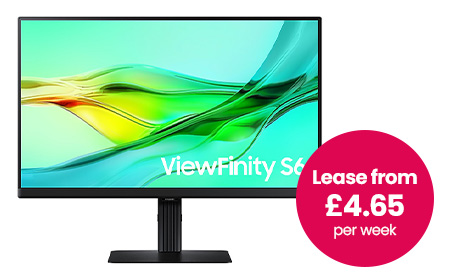
This is where a solid Samsung 24″–27″ USB-C monitor earns its place:
Full HD or QHD resolution — plenty for everyday work
USB-C connectivity with a built-in hub to cut desk clutter
Adjustable stands and easy hot-desking
Cost-effective and simple to roll out at scale
USB-C is the hero here: one cable connects, powers and moves data, which keeps desks tidy and makes hot-desking painless.
Best for: standard office rollouts and anyone watching the budget without wanting to feel it.