
The Business Guide to On-Device AI: How to Cut the Cloud Cord in 2026

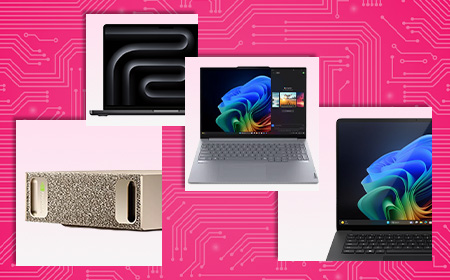
AI supercomputer devices, MacBook Pro, NVIDIA DGX Spark, Surface, lenovo

The Business Guide to On-Device AI: How to Cut the Cloud Cord in 2026

Claude, Z, Copilot and open ai logos

Quick Summary

If you’ve spent the last two years watching your team test-drive AI tools, you’ve probably noticed two things: it’s incredibly powerful, and your cloud bills are becoming weirdly expensive.

In 2026, businesses are realising that sending every single prompt to a distant data centre is slow, pricey and a compliance minefield. That’s why the tide is turning toward AI independence — running powerful AI models directly on the laptops and desktops your team uses every day.

This guide pulls together everything you need to know: why businesses are switching, who’s building the best AI hardware right now (Apple, NVIDIA and AMD have all thrown their hats in), and exactly which setup fits your team. 

We’ve been kitting out UK businesses for 40 years, so these aren’t generic picks — they’re the machines we actually put on people’s desks.

First, What Does “On-Device AI” Actually Mean?

Let’s clear up the jargon, because three very different things get lumped together.

  • Consumer cloud AI is opening a browser to ask ChatGPT or Gemini a quick question. Handy, but a standalone service — not part of your core IT.
  • Enterprise cloud AI is the corporate platforms and background automations that rent processing power from distant data centres. This is where the costs live.
  • True on-device AI means the actual language models are installed and executed entirely within your physical hardware. If a tool needs an active internet connection to function, it isn’t on-device.

That last one is the game-changer — and it’s finally practical for everyday business machines.
lenovo, surface,  asus and MSI AI logos
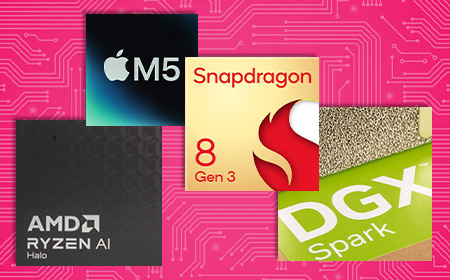
AI Chips, AMD, M5, Snapdragon, DGX Spark

The “Cloud Hangover”: Why Businesses Are Switching

The honeymoon period with cloud-based AI is ending. According to recent market data, a staggering 91% of enterprise IT leaders report significant issues with their cloud AI partnerships — citing data security, cost and disappointing performance. A pivot toward on-device AI tackles three headaches:

  • The “experimentation tax.” In the cloud, every time you ask AI to “summarise this report” or “fix this code,” a meter runs. These are inference costs — the price of the AI actually doing the work — and they’re wildly unpredictable as more staff pile in.
  • The privacy paradox. To use cloud AI, you send your data to a third party. Even with “enterprise” protections, 76% of organisations worry about data leakage. If you handle proprietary designs or sensitive client info, risk mitigation isn’t enough — you need risk elimination.
  • The visibility gap. It’s easy to track a monthly SaaS bill. It’s much harder to see the hidden costs — the hours your technical teams burn on security reviews and compliance paperwork just to get a project over the line.

Local AI also simply feels faster. There’s no internet round trip to a remote data centre, so responses often begin almost immediately.

The Privacy Advantage

At HardSoft, we talk a lot about architectural privacy. It sounds technical, but it’s dead simple: data that never leaves your computer cannot be leaked.

Run AI locally and your customer data, codebases and internal research stay behind your firewall. You can pull the internet cable out of the wall and everything still works — because all the capability and data is on your machine. No 20-page Data Processing Agreement required, because the data isn’t going anywhere.

In regulated sectors like healthcare, finance and law, where data sovereignty is a legal requirement rather than a nice-to-have, that’s enormous.

AI supercomputer devices, MacBook Pro, NVIDIA DGX Spark, Surface, lenovo
man working on AI laptop

Understanding the “10 Billion Rule”

“Surely my laptop isn’t powerful enough to run a ‘real’ AI?” In 2024, you’d have been right. In 2026, you’re likely wrong.

One of the biggest myths is that you need a massive, trillion-parameter cloud model for everyday tasks. In reality, 57% of the AI tasks businesses run rely on lightweight models with fewer than 10 billion parameters — the ones handling routine data formatting, file indexing and document summaries.

Here’s the catch: most companies are still renting cloud space to run these lightweight models, racking up needless API bills. You’re paying for the big daddy but getting a (more than capable) minnow to do the work.

A 10-billion-parameter model doesn’t need a data centre. It only needs around 12GB of memory to run well, because modern AI formats shrink big models so they run locally without a noticeable drop in quality (it’s called quantisation, if you’re curious). Most high-end business laptops today handle this with ease.

Jargon alert — “parameters.” Think of these as the brain cells of an AI. The headline-grabbing models have trillions, but an AI with 10 billion cells is more than smart enough for conversational AI, complex summarisation and even advanced coding assistance.

The best news for business? This is no longer a one-horse race. In just eight short months the market has completely transformed, and there’s now an AI-ready machine tailored to every role in your company.

Apple: the unified memory long game

It’s a common misconception that Apple jumped on the AI bandwagon. In fact, the company started baking “neural engines” — parts dedicated purely to AI — into its chips back in 2017. Every lesson learned went into the M-series processors that power today’s MacBooks, where the CPU, GPU and Neural Engine all work together.

Apple’s secret weapon is Unified Memory Architecture (UMA). In a traditional PC, the processor and the graphics card have separate pools of memory, and shuttling data between them creates a bottleneck. Apple gave the whole chip one massive, shared, high-speed reservoir instead. That’s why a 128GB MacBook Pro can run a 70-billion-parameter model with ease — no cloud required. Need to go bigger? The Mac Studio, with up to 512GB of unified memory, chews through models over 100 billion parameters right at your desk.

This isn’t “toy model” territory, either. Forward-thinking firms are now running massive open-weight models locally with output quality practically indistinguishable from top-tier cloud models — at zero per-token cost and with absolute privacy.
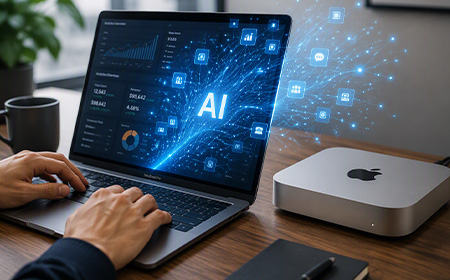
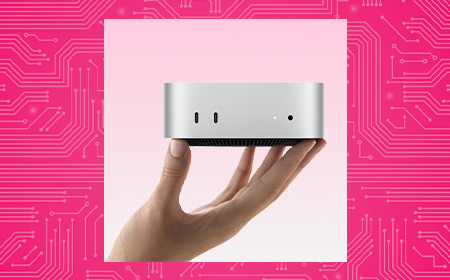
working on a MacBook with apple Mac mini, good for AI
Mac mini for on device AI

The Mac mini as a 24/7 “AI agent hub”

One of the most interesting trends of 2026 is the humble Mac mini as an “AI agent hub” — a small, quiet, low-power machine running background AI 24/7, organising files and monitoring data while you sleep. Under the latest macOS you can even daisy-chain several together into a private AI supercomputer in the corner of the office. For some firms, moving routine tasks off the cloud and onto local minis has cut total cost of ownership by more than 50%.

Bonus: Apple’s Private Cloud Compute handles the occasional oversized task on secure Apple Silicon servers without retaining your data afterwards — and it’s included natively in Apple Intelligence, no extra token fees.

NVIDIA: raw power and universal compatibility

NVIDIA took the early crown by dropping powerful discrete GPUs straight into Windows workstations, letting businesses stop paying per-token cloud fees and start running models in-house. And it isn’t backing down.

Interestingly, 56% of organisations using Macs for local AI also deploy NVIDIA hardware — they’re not switching teams, they’re building hybrid fleets to get the best of both. 

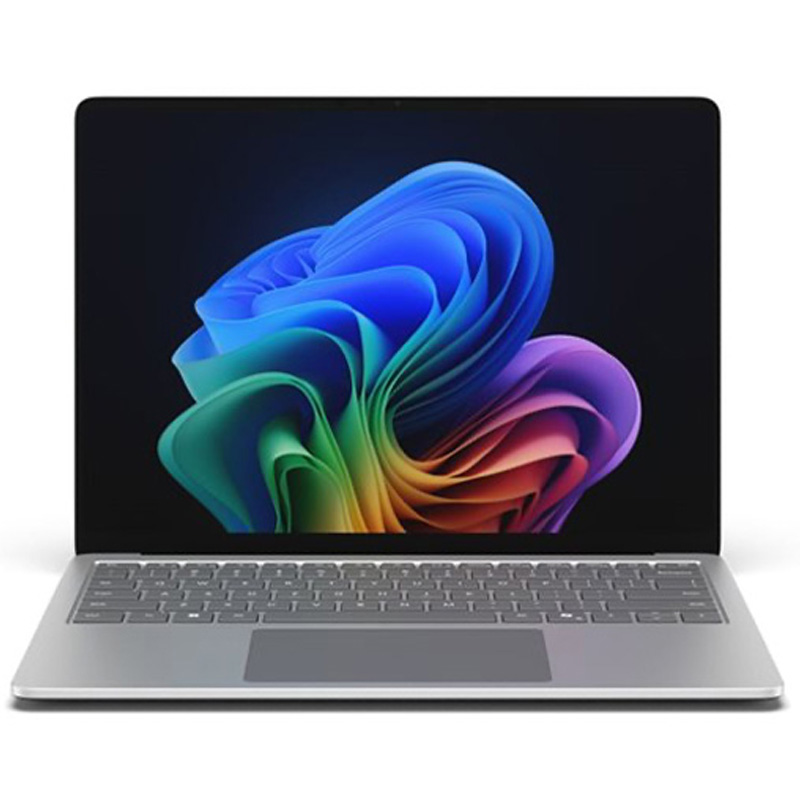
NVIDIA’s real trump card is compatibility: because most of the world’s AI software is built for its tech, technical teams prefer it for heavy-duty projects. It’s also pushed into mobile with the RTX Spark platform, powering AI-ready Windows laptops like the Surface Laptop Ultra

For serious local AI teams, dedicated systems like the HP ZGX Nano and Lenovo ThinkStation PGX run models up to 200B+.
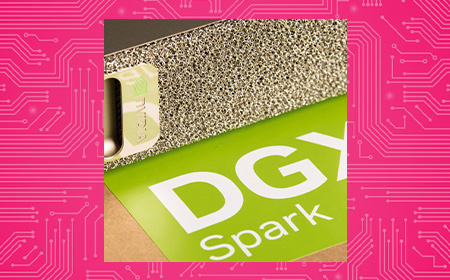
NVIDIA DGX Spark for on device AI
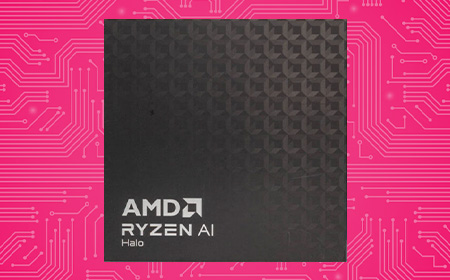
AMD ryzen chip for on device AI

AMD: the efficiency enablers

The biggest surprise of 2026 has been the rapid rise of AMD. Rather than chase the biggest, most power-hungry chip, AMD built a brilliant middle ground: significantly more AI performance than a standard office laptop, but without the heat, noise and eye-watering energy bills of a top-tier rig.

Its new Halo chip lineup launches at roughly 20% cheaper than competing NVIDIA options — which makes AMD-powered devices ideal for wide-scale company rollouts, not just a treat for the developers.

It lets whole teams effortlessly run the 57% of everyday AI tasks that don’t need a massive, expensive tech stack.

Cloud vs Local: Where Do Your Tools Actually Run?

To build a smart hardware strategy, you need to know which tools need the internet and which run entirely offline.


AI Tool / Platform

Deployment Type

How It Works
Top-end commercial models (e.g. GPT-4o, Gemini Pro, Claude)Cloud onlyToo large for standard business hardware. They need data centres, so your data must leave your network.
Corporate assistants (e.g. Microsoft Copilot, Google Workspace AI)Hybrid / cloudIntegrated into your apps, but the heavy processing and data retrieval still happen on external servers.
Open-weight models (e.g. Llama, Phi-4, Gemma, Qwen, DeepSeek)100% localThe full model files sit on your hardware and process data entirely offline, behind your firewall, with total privacy.

The 2026 rule of thumb: use cloud platforms for massive, creative or web-scale research where data sensitivity isn’t a barrier. For routine automation, private company data and 24/7 background agents, run open-weight models locally on your leased hardware to kill subscription costs and guarantee privacy.

Jargon alert — “open-weight model.” Standard cloud AI keeps its system locked away behind an internet wall. An open-weight model hands you the finished, fully trained settings so you can run it 100% offline with total privacy.

office lifestyle of 3 people in  meeting using copilot AI

Match the Hardware to Your Team

The smartest businesses right now aren’t just buying “faster computers” — they’re building targeted technology portfolios. Think of the switch you made to Netflix: you didn’t rip the aerial off the roof, you kept the BBC and ITV too.

Here, the cloud is Netflix and your local machines are the trusty aerial. Whatever your team size, the goal is identical: absolute privacy, predictable costs and flawless performance.


Business Type

Recommended Hardware

Why It Works

Cloud Use?
Agile team of 10 — creative, marketing, consultingMacBook Air (24GB)Runs lightweight sub-15B models locally; perfect balance of portability and capabilityRare — only for occasional heavy workloads
Tech-heavy team of 20 — developers, data, sensitive client workMacBook Pro M-series (128GB)128GB unified memory loads 70B–122B models natively for offline code review and deep logicOptional — for deployment and huge datasets
Professional services firm of 50 — legal, finance, recruitmentStandard laptops + Mac mini “agent hubs”Minis run 24/7 indexing behind your firewall; can cut cloud costs by 50%+Yes — for deep analysis across large archives
Scaling team of 100+ — everyone needs AIAMD-powered Windows laptops + NVIDIA workstationsAMD = efficient everyday AI; NVIDIA = heavy technical workloads, without breaking the budgetYes — for high-volume spikes and multi-department tasks
Enterprise of 500+ — global, complex automationMac Studio clusters (1TB+ pooled memory)Sovereign, high-memory local processing for sensitive R&DDefinitely — for ultra-massive, multi-layered workloads


The strategy today is never about buying the most expensive machine available — it’s about matching the right tool to the job. For raw memory capacity, the Mac Studio and MacBook Pro are hard to beat. For specialist engineering, NVIDIA workstations offer industry-standard software support. For a mobile workforce, AMD ultra-portables and Copilot+ Windows laptops deliver local AI speed with all-day battery.

Don’t see your setup? Talk to our AI leasing experts

Your On-Device AI FAQs

Is on-device AI really as good as the cloud? For what most businesses do day-to-day, yes — and it’s often faster, because you’re not waiting on a busy cloud server to respond.

Does “on-device” mean we can’t use the cloud at all? Not at all. The future is hybrid. Modern operating systems are smart enough to process everyday tasks locally for free, then tap secure cloud infrastructure only when you need the extra muscle. You get local privacy and infinite cloud scale.

Isn’t the upfront hardware cost too high? You’re trading a never-ending monthly bill for a fixed cost you can manage. Buying outright is a big CapEx hit, though — which is exactly why leasing is so popular (more below).

What about data security? This is the single biggest win. What never leaves your computer cannot be leaked to third-party servers. No complex data agreements, no exposure.

So the future is hybrid? That’s where we’d put our money. On-device AI brings speed, security and savings; cloud AI is your super-sub for when things get heavy.
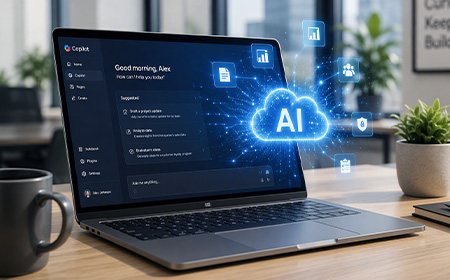
AI Cloud on laptop, in an open office
one payment per month

Leasing AI Supercomputers With HardSoft

Here’s the honest bit: the hardware that makes on-device AI possible isn’t cheap to buy outright. A capable AI workstation runs anywhere from £2,000 to £7,000+, and buying a fleet of them is a serious capital hit. That’s why the shift to local AI and the shift to leasing go hand in hand — you swap unpredictable cloud fees for one fixed, predictable monthly cost.

Thousands of UK businesses already lease their workplace devices from HardSoft. For a single all-in monthly payment, we supply fully AI-ready tech, pre-configured to your exact specs and backed by Apple- and Microsoft-certified support. You can bundle in insurance, lifecycle logistics, security software and MDM — all on one agreement, with one point of support.

Build Your AI-Ready Fleet with HardSoft

We’ve spent 40 years helping businesses get the right tech at the right time — from global brands like LG and Levi’s to hundreds of fast-growing smaller firms. It’s IT leasing, reinvented.

Whether you’re kitting out a creative team of ten or building a private AI supercomputer cluster, the question is no longer if your business should run AI locally — it’s where. Explore the full range of NVIDIA-powered supercomputers, Copilot+ PCs and Apple Intelligence machines ready to lease today, and cut the cloud cord for good. 

Not All Monitors Are Equal: How to Choose the Right One for Work

lifestyle of people working on monitors
working on a monitor

Quick Summary

If you’re rolling out monitors across your business, the right choice rarely comes down to the spec sheet. It comes down to how each person actually works.

Some people need more space. Some need colour accuracy. Some are in back-to-back calls. And plenty just need something reliable that sets up in one cable.

This guide breaks that down properly. We’ll match real-world roles to the right type of monitor — and point you to the specific models from the HardSoft monitor range that fit each one.

We’ve been kitting out UK businesses for 40 years, so these aren’t generic picks — they’re the displays we actually put on people’s desks.

The Problem Most Businesses Run Into

Most businesses pour time into choosing laptops and desktops, then treat the monitor as an afterthought.

Which is odd, because the monitor is the thing your team stares at all day.

Get it wrong and you’ll feel it:

  • Too little screen space means constant alt-tabbing between windows
  • Poor clarity means eye strain and slower work
  • The wrong setup means messy desks, extra dongles and accessories nobody asked for

Get it right and everything just flows — cleaner workflows, less friction, better output. The trick is to stop comparing specs first and start with a simpler question:

What does this person actually do all day?

That answer will lead you to the right monitor faster than any spec comparison. Here’s how it breaks down by role.

monitors for businesses with problems

For creative & colour-critical work

If your team works with visuals — photography, design, retouching, anything heading to print — colour accuracy is a must. A colour that looks right on screen but prints wrong costs time and money.

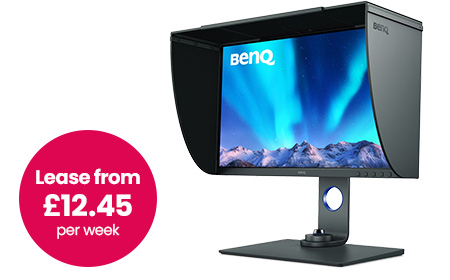
BenQ 27″ 4K Photographer Monitor — SW272U

This is the one built specifically for that job. It’s a 27″ IPS 4K display (3840 × 2160) with factory calibration, so it’s accurate out of the box — no second-guessing on day one. 

Plus you get: 

  • USB-C with 90W power delivery — charges a laptop and carries video over a single cable
  • Built-in SD card reader for photography workflows
  • Included shading hood to cut glare on colour-critical tasks

Your team will spend less time fighting colours, get consistent results across devices, and work with confidence. 

LG 32″ 6K Thunderbolt Monitor

When a single creative display isn’t enough — think design-heavy teams, video editors, or anyone working across large, detailed canvases — this is the step up. 

It’s a 32″ 6K Nano IPS Black panel with HDR and genuinely deep blacks, driven by a single Thunderbolt 5 cable.

Best for: studios and design-led teams who want one display to do everything. 

For Mac Users & Premium Desk Setups

Some teams — leadership, client-facing roles, design-led businesses — want a clean, high-end setup where the screen looks as premium as the work on it. With Mac users especially, the right display also just feels like part of the machine.

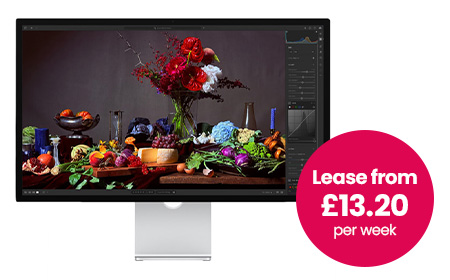
Apple Studio Display

This is the natural pairing for any Mac-based team: 

  • 27″ 5K Retina display with True Tone
  • Wide P3 colour for design, photo and video work
  • 12MP centre-stage camera plus studio-quality speakers and mics built in
  • Seamless macOS integration over Thunderbolt / USB-C

Best for: Mac-first teams, leadership and client-facing roles who want an aesthetic, minimal desk.

For Touch-First & Interactive Work

If your team sketches, annotates, presents or works hands-on with their designs, a touchscreen display changes how they work. These are a HardSoft favourite for design studios and creative agencies.

Alogic Clarity 5K Touchscreen Monitor

A 27″ 5K display you can actually touch and draw on — factory-calibrated colour with stylus support, so it’s equal parts colour-accurate monitor and digital canvas.

  • 27″ 5K with accurate, high-resolution detail
  • Full touchscreen with stylus support for sketching and mark-up
  • Single-cable USB-C setup, plus HDMI and DisplayPort

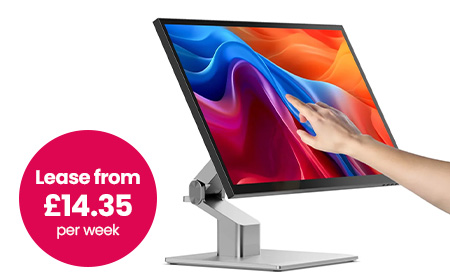
Alogic Clarity 5K Fold Touch 27″ Monitor

The same 5K touchscreen, but on a fold-flat hinge. Lay it nearly horizontal to draw, annotate or sign like a drafting table, then stand it back up as a standard display. It’s the most flexible screen in the range for hybrid creative and presenting setups.

  • 27″ 5K fold-flat touchscreen with stylus support
  • Drops flat for drawing and mark-up, back up for everyday work
  • USB-C with 65W charging, plus HDMI, DisplayPort, USB-A and USB-B
  • One-cable setup for a clean desk

For Multitaskers & Data-Heavy Roles

If someone lives in spreadsheets, dashboards, project tools and a dozen browser tabs, they don’t need ultra-wide colour accuracy. They need space.

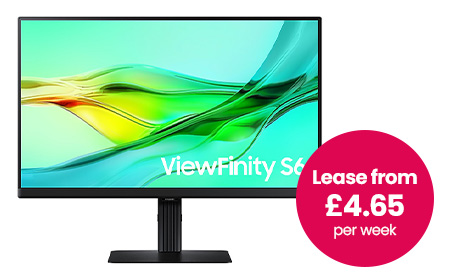
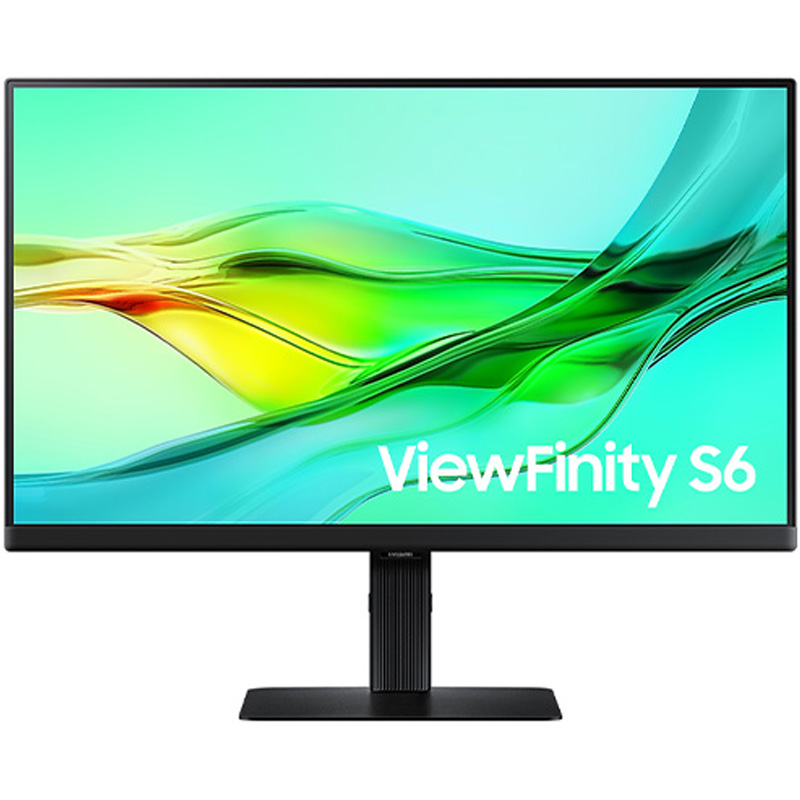
Samsung 34″ ViewFinity S6 Monitor

A curved ultrawide that often replaces a dual-monitor setup entirely and tidies up the cabling while it’s at it.

  • 34″ curved Ultra-WQHD (21:9) — see everything at once, fewer overlapping windows
  • USB-C, HDMI, DisplayPort and LAN, plus a built-in webcam and speakers
  • KVM switch to control two machines from one keyboard and mouse
  • Often does the job of two screens, with half the clutter

Best for: finance, operations, project management — anyone who lives in data and systems. 

For Hybrid Workers & Call-Heavy Roles

If your team is in meetings all day, the screen alone isn’t the point — they also need a decent camera, a clear mic and speakers that don’t need an apology at the start of every call. Plus, bolting on separate accessories means more clutter and more to go wrong.

Dell Pro Conferencing Monitor

This rolls the whole video-call kit into the display itself.

  • QHD display with a built-in webcam, mic and speakers
  • Microsoft Teams / Zoom ready with dedicated controls
  • USB-C single-cable setup that also charges the laptop, plus HDMI, DisplayPort and Ethernet
  • Doubles as a USB hub — no extra dock needed for most desks

Best for: sales, account management, recruitment and customer-facing teams. Faster to deploy, cleaner desks, and one less thing to support. 

For General Office Users & Tighter Budgets

Not every role needs something specialised. Plenty of people just need a reliable, sharp screen and a clean one-cable setup. And you want something you can standardise across the whole business without thinking too hard about it.

This is where a solid Samsung 24″–27″ USB-C monitor earns its place:

  • Full HD or QHD resolution — plenty for everyday work
  • USB-C connectivity with a built-in hub to cut desk clutter
  • Adjustable stands and easy hot-desking
  • Cost-effective and simple to roll out at scale

USB-C is the hero here: one cable connects, powers and moves data, which keeps desks tidy and makes hot-desking painless.

Best for: standard office rollouts and anyone watching the budget without wanting to feel it.

samsung 24″–27″ USB-C monitor lifestyle
Apple studio lifestyle

The Specs Worth Checking

When you do compare models, focus on what affects the day-to-day:

Resolution

  • Full HD → fine for basic admin and office work
  • QHD → sharper text, more usable space
  • 4K and above → needed for creative detail and large screens

Screen size

  • 24″ → compact and standard
  • 27″ → the best all-rounder for most desks
  • 32″+ and ultrawide → multitasking and immersion

Connectivity — look for USB-C (single-cable setup), Thunderbolt for the highest-end displays, plus HDMI/DisplayPort and a built-in hub. 

Ergonomics — easy to overlook, but height adjustment, tilt/swivel and eye-comfort features make a real difference over a full working day.

How This Fits into Leasing (& Why It Matters)

Hardly anyone buys monitors in isolation. You’re usually thinking about the whole setup — laptops, desktops, docks, accessories — across a team.

That’s exactly where leasing through HardSoft beats buying outright:

Not sure which way to go for a particular team? That’s what we’re here for — talk to us.

one payment per month

Compare the Best Monitors 

Role / use caseRecommended monitorSize & resolutionStandout featuresFrom (per week)
Photography, design & printBenQ 27″ 4K Photographer SW272U27″ 4K IPSFactory calibration, USB-C 90W, SD reader, shading hood£12.45
Design-heavy & video teamsLG 32″ 6K Thunderbolt32″ 6KNano IPS Black, HDR, Thunderbolt 5 single cable£15.95
Mac users & premium desksApple Studio Display27″ 5KTrue Tone, 12MP camera, studio speakers, macOS-native£13.20
Touch & annotation workAlogic Clarity 5K Touchscreen27″ 5KTouchscreen + stylus, calibrated colour, 1-cable£13.20
Flexible touch & presentingAlogic Clarity 5K Fold Touch27″ 5KFold-flat touchscreen, stylus, USB-C 65W£14.35
Multitasking & data rolesSamsung 34″ ViewFinity S634″ Ultra-WQHDCurved ultrawide, KVM, built-in webcam£4.65
Hybrid & call-heavy rolesDell Pro Conferencing MonitorQHDBuilt-in webcam/mic/speakers, Teams/Zoom ready£2.80
General office & budgetSamsung 24″–27″ USB-C24″–27″ FHD/QHDUSB-C hub, adjustable stand, easy to standardiseBudget pick

iPad

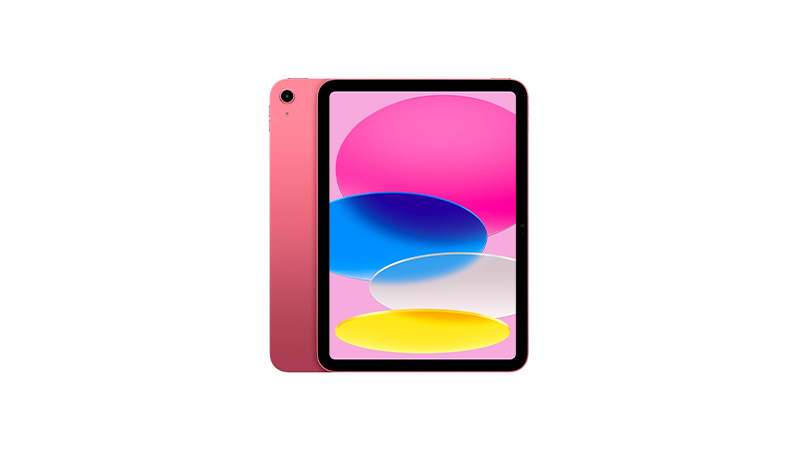
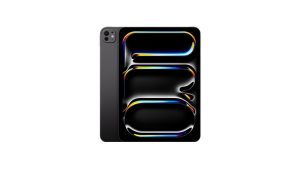
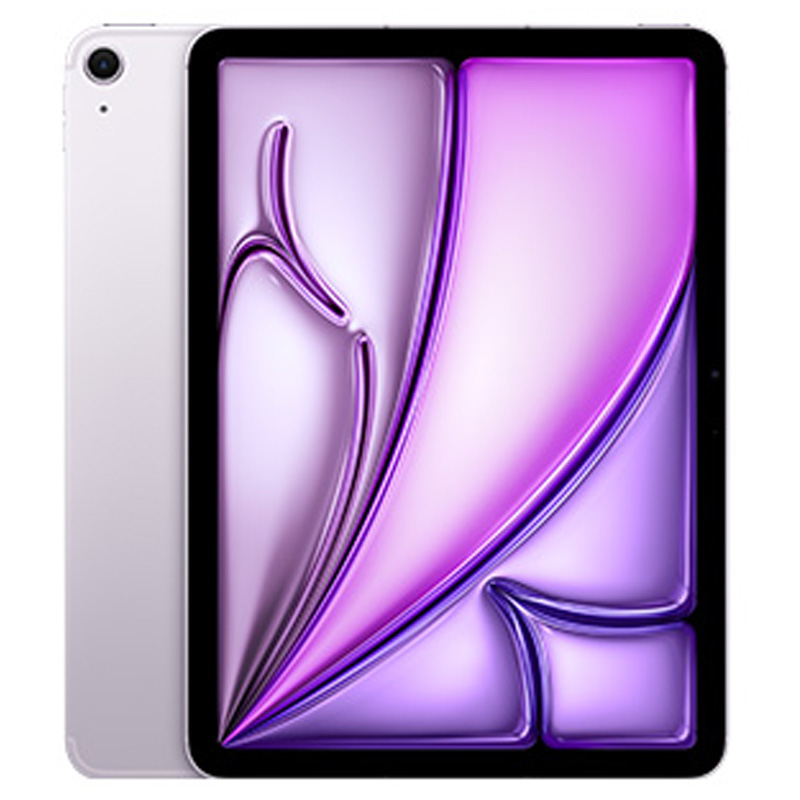
iPad 11 inch pink

Apple iPad Leasing for Flexible Business Work

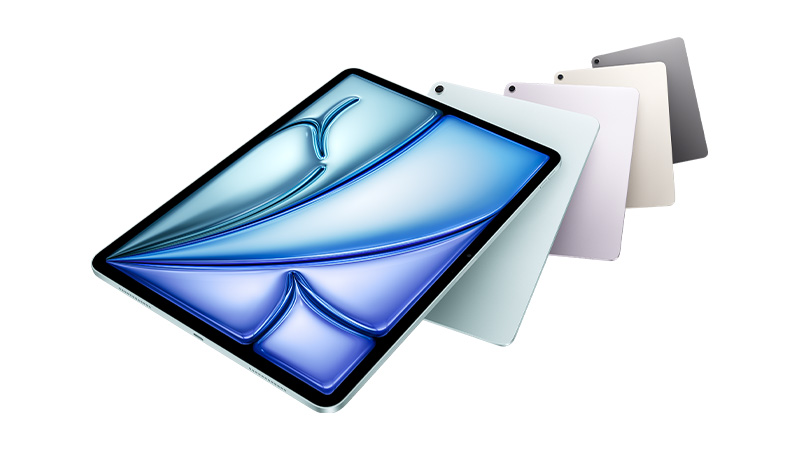
Apple iPad leasing gives your business a flexible, cost-effective way to equip teams with powerful tablets without upfront costs. From iPad and iPad mini to iPad Air and iPad Pro, each model offers reliable performance, high-quality Retina displays, and strong battery life for day-to-day productivity.

  • Support everyday business tasks with a lightweight, versatile touchscreen device
  • iPad Air family
  • iPad 11 inch pink
one source 1 icon

A Single Source. No Middle Man.

cancel early

Cancellation Option. Peace of Mind.

arrows showing flexibility

As Flexible as you need. Solutions to Suit.

support plans

Support Plans. Warranty, Support & Loan Device.

Loyalty Rewards Programme.

IT Leasing Reinvented

Choose your Solution. Bespoke IT leasing with inclusive Support Plans
Flexi
  • Switch IT – change to alternative devices at 12 months
  • End IT – cancel after 12 months
  • Own IT – at the end for £1
  • Lifetime Support
  • Earn Rewards Points
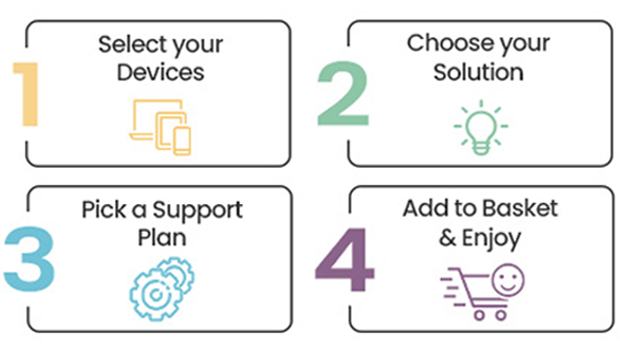
4 Easy Steps
Pure
  • Switch IT – change to alternative devices at 24 months
  • End IT – cancel after 24 months
  • Return IT – refresh at expiry
  • Lifetime Support
  • Earn Rewards Points

See what our Customers say about us…

Apple iPad FAQs

What's the difference between an Apple iPad Air and iPad Pro?

The iPad Pro offers a faster chip, a higher-quality display (including mini-LED or OLED on larger models), and better support for demanding creative work, while the iPad Air offers similar core functionality at a lower price with slightly less performance headroom. Most general business users are well served by the Air, while creative professionals benefit from the Pro.

Can an Apple iPad replace a laptop?

For many light-to-medium tasks – email, note-taking, presentations and web-based work – an iPad paired with a keyboard case can replace a laptop. Users needing full desktop software or complex multitasking will still find a MacBook or Windows laptop more capable.

What are the benefits of an iPad alongside a laptop?

An iPad adds portability for meetings, note-taking and presentations, along with Apple Pencil support for sketching and annotating documents on the go. It also extends a Mac’s capabilities through features like Sidecar, turning the iPad into a second screen.

What iPad is best for business use?

The best choice depends on your needs: the iPad Air offers a great balance of performance and affordability for hybrid and mobile teams, while the iPad Pro suits users needing laptop-level power for demanding tasks. Read our full guide on choosing the right iPad for business to find the best fit for your team.

Which accessories are recommended for an Apple iPad?

For business use, we recommend pairing your iPad with an Apple Pencil for notetaking and annotation, plus a Magic Keyboard or Smart Keyboard Folio to turn it into a lightweight workstation. Browse our full range of Apple accessories to kit out your devices.

Demystifying New Intel CPUs: What IT Teams Need to Know

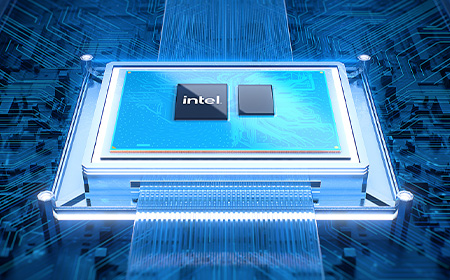
Intel Chip

Demystifying New Intel CPUs: What IT Teams Need to Know

Intel chip

Introduction: Why do Intel CPU names look like a password?

If you’ve looked at a laptop or spec sheet recently and thought:

“What on earth does Intel® Core™ Ultra 7 155H or Intel® Core™ 5 150U even mean?”

You’re not alone.

Intel has changed its processor naming system, retired the familiar i5 / i7 format, and introduced Core, Core Ultra, and new generation indicators — all at once. 

This means faster chips, better battery life, built‑in AI… and a lot of confused buyers.

The good news is that once you understand the pattern, these Intel CPU names actually tell you a lot.

Let’s decode them step by step.

Intel® Core™ Ultra Processors

Think of these as Intel’s “new‑era” CPUs.

Intel Core Ultra processors are the most modern and premium processors in Intel’s lineup. They’re built for how people actually work today — multitasking, video calls, creative apps, and increasingly, AI‑powered tools.

Example: Intel® Core™ Ultra 7 155H 

  • Intel® – Corporate brand – This simply tells you who makes the processor.
  • Core™ Ultra – Product brand – This is the processor family.
  • 7 – Performance tier.
    • This replaces the old i5 / i7 / i9 naming system.
    • Intel Core Ultra processors come in these performance tiers:
  • 155 – SKU and generation indicator – This is where Intel now hides what used to be the “generation” label.
    • The first digit (1) indicates the Core Ultra generation.
    • 1 = first generation of Core Ultra processors.
    • The remaining digits (55) are the SKU, which position the processor within the Ultra 7 tier.
    • These numbers only make sense within the same processor family and tier. Bigger numbers don’t automatically mean better if you’re comparing across ranges. 
  • H – Suffix – The final letter tells you how the processor is designed to behave.
    • H = a high‑performance laptop processor.

Best for: Power users, developers, engineers, creatives, leadership laptops. 

Intel Core Ultra 7
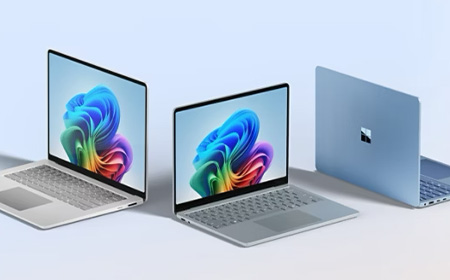
Copilot PCS

V‑Suffix Core™ Processors (Copilot+ PCs)

You may also see some Intel Core Ultra processors ending in a V.

The V suffix is important because it identifies Intel’s most AI‑focused mobile processors — and these are the chips powering Copilot+ PCs today.

Example: Intel® Core™ Ultra 7 268V

In plain English, this is:

  • A high‑end, power‑efficient mobile processor
  • Designed for thin‑and‑light laptops and tablets
  • Part of Intel’s Lunar Lake platform
  • Built specifically to handle AI workloads on‑device
  • Equipped with a 48‑TOPS NPU and built‑in memory for efficiency

Intel® Core™ Processors

The sensible, reliable middle ground.

Intel Core processors are the mainstream option. They use the same logic as Core Ultra, just with a shorter, simpler name. 

Example: Intel® Core™ 5 Processor 120U 

  • Intel® – Corporate brand.
  • Core – Mainstream family. Intel Core sits below Core Ultra
  • 5 – This replaces the old Core i5 label.
    • Intel Core processors come in:
      • Core 3
      • Core 5 = mid‑range performance
      • Core 7
  • 120 – Processor number – Intel Core processors use a three‑digit processor number.
    • The first digit (1) indicates the processor series. The remaining digits position it within the Core 5 range.
    • You don’t need to overthink this — higher numbers generally sit higher within the same tier, but comparisons should stay within the Core family.
  • U – Suffix (what it’s built for) U = power‑efficient laptop processor.

Best for: The majority of office users — finance, HR, sales, operations, admin.

Intel Core chip
Intel chip N series

Intel® Core™ Processors N‑Series

Designed to sip power, not sprint.

The N‑Series is Intel’s efficiency‑first Core range, aimed at simple, well‑defined workloads.

These processors prioritise:

  • Low power usage
  • Quiet operation
  • Affordable devices

Example: Intel® Core™ 3 Processor N355 

  • 3 – Entry‑level performance tier within the Core family.
  • N – Identifies the processor as part of the N‑Series (efficiency‑focused, entry‑level Core).
  • 355 – SKU that positions the processor within the N‑Series
    • Higher numbers generally sit higher within the N‑Series only.

Best for: Kiosk machines, education, front‑of‑house systems, shared or task‑specific devices.

If there’s one thing to pay attention to in an Intel CPU name, it’s the letter at the end.

That suffix tells you how the processor is tuned and it can make a bigger difference than the tier number.

Common suffixes explained

SuffixWhat it really meansTypical use
UPower‑efficientEveryday business laptops
PBalancedThin & light professional devices
HHigh performancePower users
HXMaximum performanceMobile workstations
VAI‑optimised, ultra‑efficient (Copilot+ ready)Thin‑and‑light AI laptops / Copilot+ PCs
KUnlocked (desktop)High‑end desktops
TPower‑optimised (desktop)Small form factor PCs

A Core Ultra 7 U‑series chip will feel very different to a Core Ultra 7 H‑series chip, even though the name looks similar. 

A good example of an H-suffix workhorse is the HP ZBook X mobile workstation, which pairs Core Ultra 9 H-series performance with pro-grade graphics for sustained creative and engineering workloads — exactly where the H suffix earns its keep.


Intel® Processor

The basics, and nothing more.

The Intel Processor family sits below Core. These processors are all about keeping costs down while still delivering reliable performance for everyday, lightweight tasks.

Example: Intel® Processor N200

  • N – Identifies the processor type.
    • Intel Processor prefixes typically start with N (or U in some variants).
  • 200 – SKU that positions the processor within the Intel Processor range.

There’s no generation indicator, no performance tiers, and no suffix letters to decode.

Best for: Basic admin tasks, shared devices, very light workloads.

Pentium® Silver and Pentium® Gold Processors

Pentium® Silver and Pentium® Gold Processors

Budget‑friendly, with a bit more headroom.

Pentium processors sit above Intel Processor and below Core. They’re often used where cost control is important, but you still want a bit of responsiveness.

What’s the difference?

  • Pentium Silver – More efficiency‑focused
  • Pentium Gold – Slightly higher performance

Example: Intel® Pentium® Gold G7400 Processor

  • Gold – Higher‑end Pentium
  • G – Integrated graphics tier

Best for: Education, light business tasks, budget‑conscious deployments.

Intel® Celeron® Processors

The entry‑level of entry‑level.

Celeron processors are Intel’s most basic CPUs. They’re built for very simple computing and nothing more.

Celeron processors use a few different naming formats, depending on the model:

  • Some include a four‑digit number
  • Some use a prefix, a suffix, or both

Example: Intel® Celeron® Processor N4500

  • Straightforward naming
  • Minimal performance
  • Efficiency‑first design

Higher numbers within the Celeron family generally indicate incremental improvements, such as:

  • Slightly higher clock speeds
  • More cache
  • Minor platform updates 

Best for: Single‑purpose devices and ultra‑light workloads.

Intel® Celeron® Processors
customise your IT leasing solution

Why This Actually Matters for IT Teams

Confusing CPU names don’t just cause headaches, they cause bad decisions.

We regularly see organisations dealing with:

  • Over‑spec’d laptops that push up lease costs
  • Under‑powered devices that frustrate users
  • Mixed estates with inconsistent performance

At HardSoft, we help IT teams cut through the noise by:

  • Matching processor ranges to actual job roles
  • Standardising device performance
  • Offering flexible leasing that lets you refresh, upgrade, or change mid‑term
  • Supporting the full lifecycle through services like Boomerang

With 40+ years of experience and a 4.9★ Trustpilot rating, our job is to turn specs into sensible decisions.

Choose CPUs without the Guesswork

Intel CPU names don’t need to be intimidating and your refresh strategy doesn’t need to be either.

If you want help choosing the right processors for each role, speak to HardSoft about your next device refresh or lease. 

Home

HardSoft X Devices for Teams Shop

IT Leasing Reinvented

Get the latest Apple, Windows, and premium devices with affordable monthly plans, full support, and upgrade options—designed to keep your business moving forward.

Latest Offers

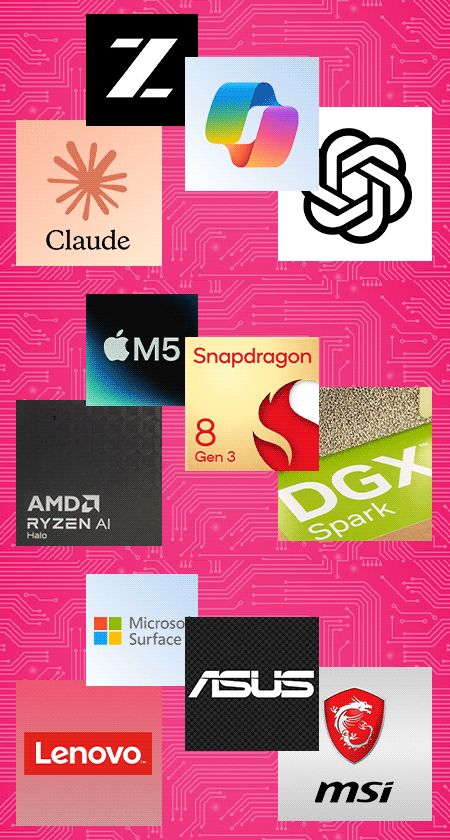
AI logos for ondevice and cloud systems

Explore our range of AI-ready computers. Built for fast, secure on-device AI performance.

Help your business stay productive while keeping technology costs under control.

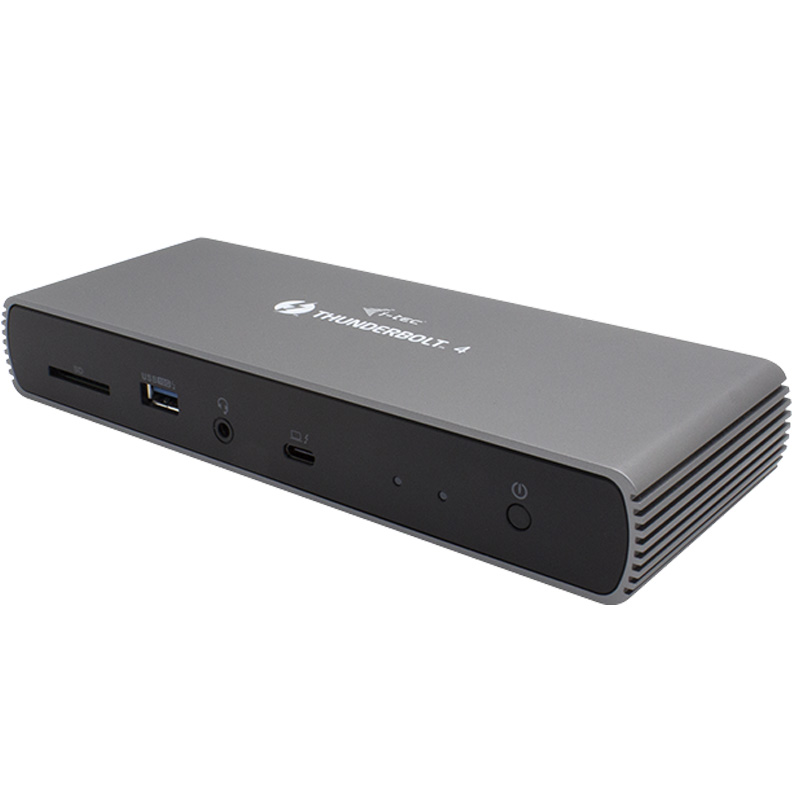
Free teck doc with Samsung Book6 Pro 16 inch

Add the Samsung Galaxy to Your Basket and Receive a Free i-tec Nano Dock.

Coming soon products

Exciting products are launching soon—keep an eye out for the latest arrivals here.

one source 1 icon

A Single Source. No Middle Man.

cancel early

Cancellation Option. Peace of Mind.

arrows showing flexibility

As Flexible as you need. Solutions to Suit.

support plans

Support Plans. Warranty, Support & Loan Device.

Loyalty Rewards Programme.

Buying Guides

Navigating the world of technology can be overwhelming, with countless brands and options to consider. Our buying guides are here to help you choose the perfect devices and solutions for your business.

See what our Customers say about us…

Working With…