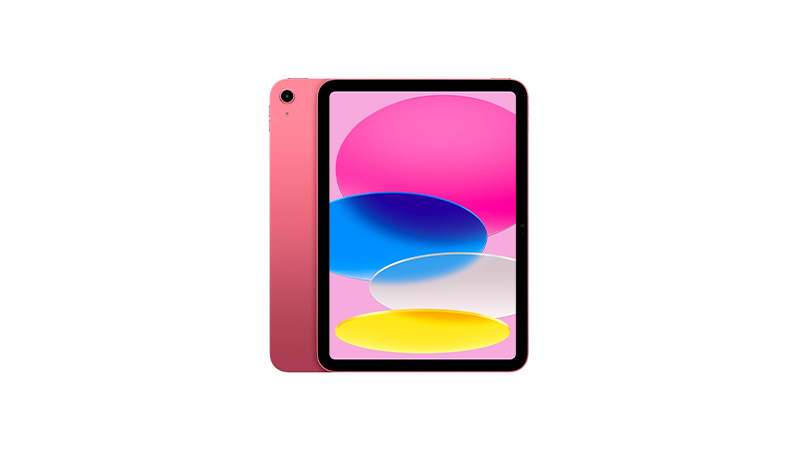
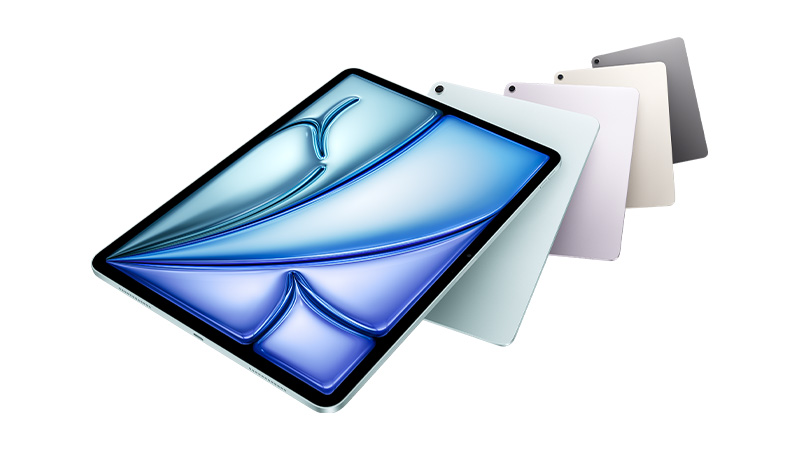
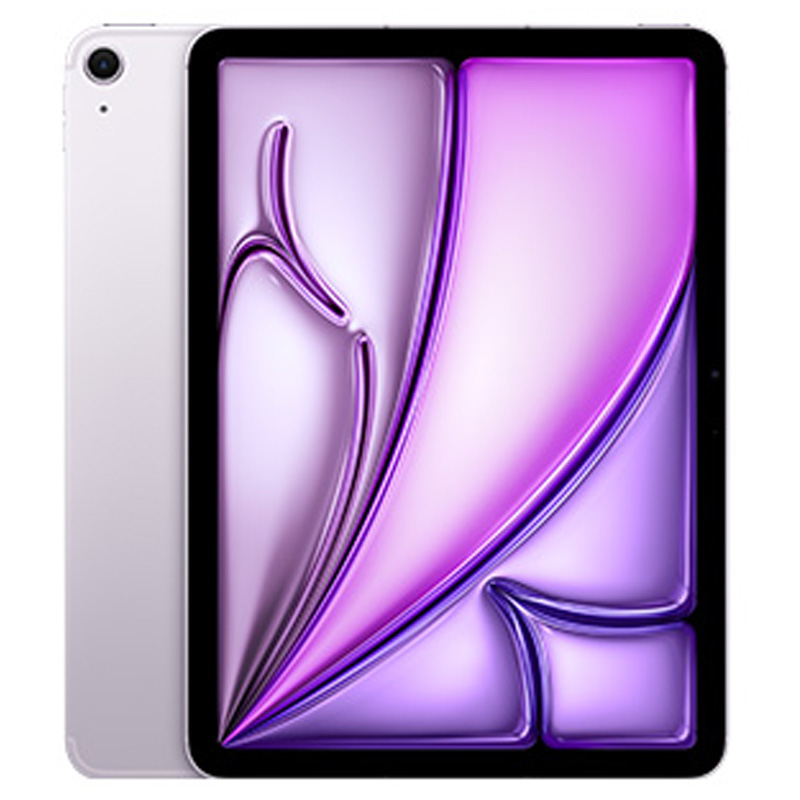
Apple iPad leasing gives your business a flexible, cost-effective way to equip teams with powerful tablets without upfront costs. From iPad and iPad mini to iPad Air and iPad Pro, each model offers reliable performance, high-quality Retina displays, and strong battery life for day-to-day productivity.
Support everyday business tasks with a lightweight, versatile touchscreen device
What's the difference between an Apple iPad Air and iPad Pro?
The iPad Pro offers a faster chip, a higher-quality display (including mini-LED or OLED on larger models), and better support for demanding creative work, while the iPad Air offers similar core functionality at a lower price with slightly less performance headroom. Most general business users are well served by the Air, while creative professionals benefit from the Pro.
Can an Apple iPad replace a laptop?
For many light-to-medium tasks – email, note-taking, presentations and web-based work – an iPad paired with a keyboard case can replace a laptop. Users needing full desktop software or complex multitasking will still find a MacBook or Windows laptop more capable.
What are the benefits of an iPad alongside a laptop?
An iPad adds portability for meetings, note-taking and presentations, along with Apple Pencil support for sketching and annotating documents on the go. It also extends a Mac’s capabilities through features like Sidecar, turning the iPad into a second screen.
What iPad is best for business use?
The best choice depends on your needs: the iPad Air offers a great balance of performance and affordability for hybrid and mobile teams, while the iPad Pro suits users needing laptop-level power for demanding tasks. Read our full guide on choosing the right iPad for business to find the best fit for your team.
Which accessories are recommended for an Apple iPad?
For business use, we recommend pairing your iPad with an Apple Pencil for notetaking and annotation, plus a Magic Keyboard or Smart Keyboard Folio to turn it into a lightweight workstation. Browse our full range of Apple accessories to kit out your devices.
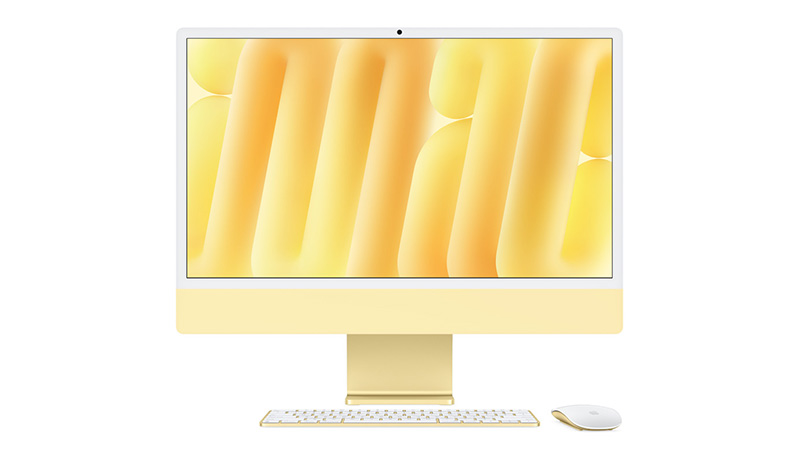
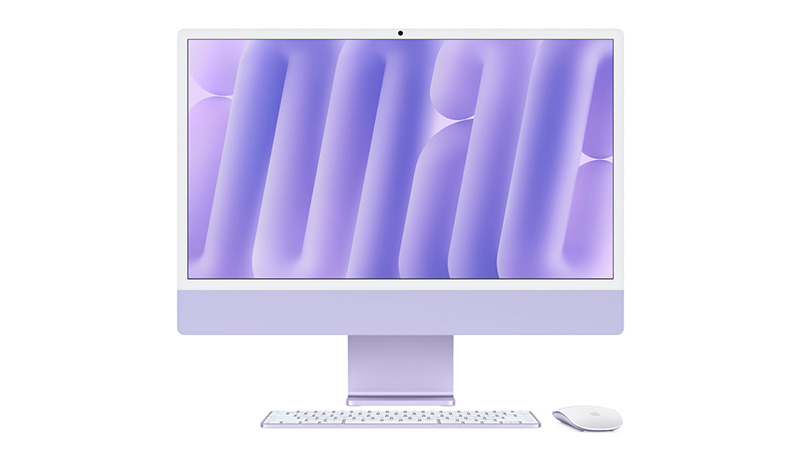
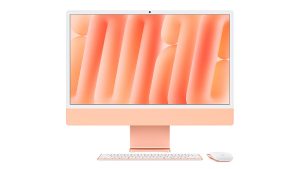
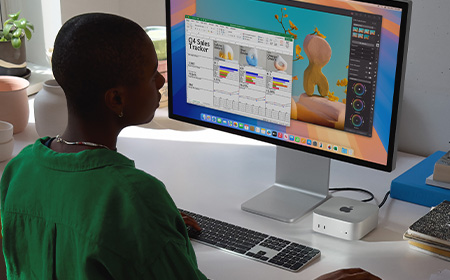
The Apple iMac combines stunning design, powerful performance and an immersive display in one beautifully streamlined desktop. Powered by Apple silicon, the latest iMac is built to handle everything from everyday business tasks to creative projects, video editing and professional workflows with ease.
The iMac suits desk-based employees who don’t need portability – such as reception, admin, design, or creative staff – who benefit from its large, high-quality built-in display. It’s a strong all-in-one option for fixed workstations.
What's the total cost of ownership compared to a Mac Mini and Monitor setup?
The iMac offers strong value over a typical 5-year period, with total costs broadly comparable to a Mac mini and monitor setup once you factor in the time and cost of managing two separate purchase and upgrade cycles. Because the iMac bundles a high-quality display and computer into one unit, businesses avoid the added procurement overhead, compatibility checks, and desk-space planning that come with sourcing a separate monitor. For organisations that value simplicity and predictable, fixed-cycle budgeting, the iMac is the more straightforward and cost-effective choice.
What is the best iMac for creative work?
The 24″ iMac with Apple’s M4 chip is a strong choice for creative work, thanks to its vibrant 4.5K Retina display and enough GPU power to handle photo editing and design tasks smoothly. It’s a great fit for creatives who don’t need portability and want a clean, all-in-one setup.
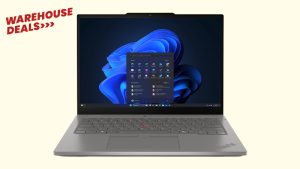
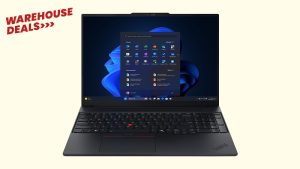
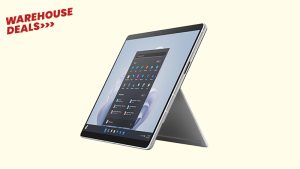
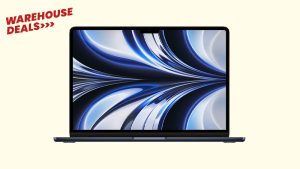
Our Warehouse Deals feature carefully checked refurbished laptops, open box MacBooks, and condition-graded tech, all available on HardSoft’s business leasing terms. Every item is tested to full working order, with any cosmetic marks clearly listed. Stock is limited and refreshed regularly.
Demystifying New Intel CPUs: What IT Teams Need to Know
Intel’s new CPU names can look intimidating. This guide breaks down the processor naming system without the jargon.
Introduction: Why do Intel CPU names look like a password?
If you’ve looked at a laptop or spec sheet recently and thought:
“What on earth does Intel® Core™ Ultra 7 155H or Intel® Core™ 5 150U even mean?”
You’re not alone.
Intel has changed its processor naming system, retired the familiar i5 / i7 format, and introduced Core, Core Ultra, and new generation indicators — all at once.
This means faster chips, better battery life, built‑in AI… and a lot of confused buyers.
The good news is that once you understand the pattern, these Intel CPU names actually tell you a lot.
Let’s decode them step by step.
Intel® Core™ Ultra Processors
Think of these as Intel’s “new‑era” CPUs.
Intel Core Ultra processors are the most modern and premium processors in Intel’s lineup. They’re built for how people actually work today — multitasking, video calls, creative apps, and increasingly, AI‑powered tools.
Example: Intel® Core™ Ultra 7 155H
Intel® – Corporate brand – This simply tells you who makes the processor.
Core™ Ultra – Product brand – This is the processor family.
7 – Performance tier.
This replaces the old i5 / i7 / i9 naming system.
Intel Core Ultra processors come in these performance tiers:
Ultra 5
Ultra 7
Ultra 9
Higher‑end variants like Core Ultra X7 and X9 – higher numbers indicate higher overall performance within the Core Ultra range.
155 – SKU and generation indicator – This is where Intel now hides what used to be the “generation” label.
The first digit (1) indicates the Core Ultra generation.
1 = first generation of Core Ultra processors.
The remaining digits (55) are the SKU, which position the processor within the Ultra 7 tier.
These numbers only make sense within the same processor family and tier. Bigger numbers don’t automatically mean better if you’re comparing across ranges.
H – Suffix – The final letter tells you how the processor is designed to behave.
H = a high‑performance laptop processor.
Best for: Power users, developers, engineers, creatives, leadership laptops.
V‑Suffix Core™ Processors (Copilot+ PCs)
You may also see some Intel Core Ultra processors ending in a V.
The V suffix is important because it identifies Intel’s most AI‑focused mobile processors — and these are the chips powering Copilot+ PCs today.
Example: Intel® Core™ Ultra 7 268V
In plain English, this is:
A high‑end, power‑efficient mobile processor
Designed for thin‑and‑light laptops and tablets
Part of Intel’s Lunar Lake platform
Built specifically to handle AI workloads on‑device
Equipped with a 48‑TOPS NPU and built‑in memory for efficiency
Intel® Core™ Processors
The sensible, reliable middle ground.
Intel Core processors are the mainstream option. They use the same logic as Core Ultra, just with a shorter, simpler name.
120 – Processor number – Intel Core processors use a three‑digit processor number.
The first digit (1) indicates the processor series. The remaining digits position it within the Core 5 range.
You don’t need to overthink this — higher numbers generally sit higher within the same tier, but comparisons should stay within the Core family.
U – Suffix (what it’s built for) U = power‑efficient laptop processor.
Best for: The majority of office users — finance, HR, sales, operations, admin.
Intel® Core™ Processors N‑Series
Designed to sip power, not sprint.
The N‑Series is Intel’s efficiency‑first Core range, aimed at simple, well‑defined workloads.
These processors prioritise:
Low power usage
Quiet operation
Affordable devices
Example: Intel® Core™ 3 Processor N355
3 – Entry‑level performance tier within the Core family.
N – Identifies the processor as part of the N‑Series (efficiency‑focused, entry‑level Core).
355 – SKU that positions the processor within the N‑Series
Higher numbers generally sit higher within the N‑Series only.
Best for: Kiosk machines, education, front‑of‑house systems, shared or task‑specific devices.
Suffixes for Intel Core Ultra and Intel Core Processors
If there’s one thing to pay attention to in an Intel CPU name, it’s the letter at the end.
That suffix tells you how the processor is tuned and it can make a bigger difference than the tier number.
Common suffixes explained
Suffix
What it really means
Typical use
U
Power‑efficient
Everyday business laptops
P
Balanced
Thin & light professional devices
H
High performance
Power users
HX
Maximum performance
Mobile workstations
V
AI‑optimised, ultra‑efficient (Copilot+ ready)
Thin‑and‑light AI laptops / Copilot+ PCs
K
Unlocked (desktop)
High‑end desktops
T
Power‑optimised (desktop)
Small form factor PCs
A Core Ultra 7 U‑series chip will feel very different to a Core Ultra 7 H‑series chip, even though the name looks similar.
A good example of an H-suffix workhorse is the HP ZBook X mobile workstation, which pairs Core Ultra 9 H-series performance with pro-grade graphics for sustained creative and engineering workloads — exactly where the H suffix earns its keep.
The Intel Processor family sits below Core. These processors are all about keeping costs down while still delivering reliable performance for everyday, lightweight tasks.
Example: Intel® Processor N200
N – Identifies the processor type.
Intel Processor prefixes typically start with N (or U in some variants).
200 – SKU that positions the processor within the Intel Processor range.
There’s no generation indicator, no performance tiers, and no suffix letters to decode.
Best for: Basic admin tasks, shared devices, very light workloads.
Pentium® Silver and Pentium® Gold Processors
Budget‑friendly, with a bit more headroom.
Pentium processors sit above Intel Processor and below Core. They’re often used where cost control is important, but you still want a bit of responsiveness.
What’s the difference?
Pentium Silver – More efficiency‑focused
Pentium Gold – Slightly higher performance
Example: Intel® Pentium® Gold G7400 Processor
Gold – Higher‑end Pentium
G – Integrated graphics tier
Best for: Education, light business tasks, budget‑conscious deployments.
Intel® Celeron® Processors
The entry‑level of entry‑level.
Celeron processors are Intel’s most basic CPUs. They’re built for very simple computing and nothing more.
Celeron processors use a few different naming formats, depending on the model:
Some include a four‑digit number
Some use a prefix, a suffix, or both
Example: Intel® Celeron® Processor N4500
Straightforward naming
Minimal performance
Efficiency‑first design
Higher numbers within the Celeron family generally indicate incremental improvements, such as:
Slightly higher clock speeds
More cache
Minor platform updates
Best for: Single‑purpose devices and ultra‑light workloads.
Why This Actually Matters for IT Teams
Confusing CPU names don’t just cause headaches, they cause bad decisions.
We regularly see organisations dealing with:
Over‑spec’d laptops that push up lease costs
Under‑powered devices that frustrate users
Mixed estates with inconsistent performance
At HardSoft, we help IT teams cut through the noise by:
Matching processor ranges to actual job roles
Standardising device performance
Offering flexible leasing that lets you refresh, upgrade, or change mid‑term
Supporting the full lifecycle through services like Boomerang
Understanding How Much RAM You Need to Order in Your New Mac
A practical guide to choosing the right RAM for your Mac’s performance, lifespan, and productivity.
Why RAM Matters More Than Ever on Modern Macs
Apple Silicon changed how RAM works. On older Intel machines, buying more RAM boosted performance but wasn’t always essential — and it could often be upgraded later. With M‑series Macs, the RAM is built directly into the chip (called Unified Memory).
This means:
You cannot upgrade it later
macOS shares memory across the CPU, GPU, Neural Engine, and apps
Low RAM can bottleneck performance even on a fast processor
For business users, this makes the initial decision far more important. If you run multiple apps, use video conferencing all day, or work with large files, your Mac may silently use swap memory, slowing everything down.
This guide will help you understand the right amount for your workflow so you’re not stuck with an underpowered device you can’t change later.
Choosing RAM isn’t about “the biggest number wins” — it’s about matching memory to the tasks you perform. Here’s a breakdown that reflects real‑world usage on M1/M2/M3 Macs:
8GB – The Minimum, Not Always Enough
Suitable for:
Email, browsing, Office apps
Light admin work
Limitations:
Safari with many tabs will push into swap
Video calls + multiple apps can slow the system
Not recommended for creative or technical professionals
Read our guide: See how the MacBook Neo performs with 8GB RAM and whether it’s enough for your day‑to‑day work.
16GB – The Business Sweet Spot
Ideal for:
Multitasking with Slack, Teams, Chrome, Office
Light creative work (Photoshop, Figma, light video editing)
Running multiple apps without slowdowns
Most business professionals will feel this is the “just right” balance.
If you’re keeping the Mac for 3–5 years, buy more RAM than you think you currently need. RAM is the one thing you can’t upgrade later—and lack of it is the #1 cause of sluggish Macs.
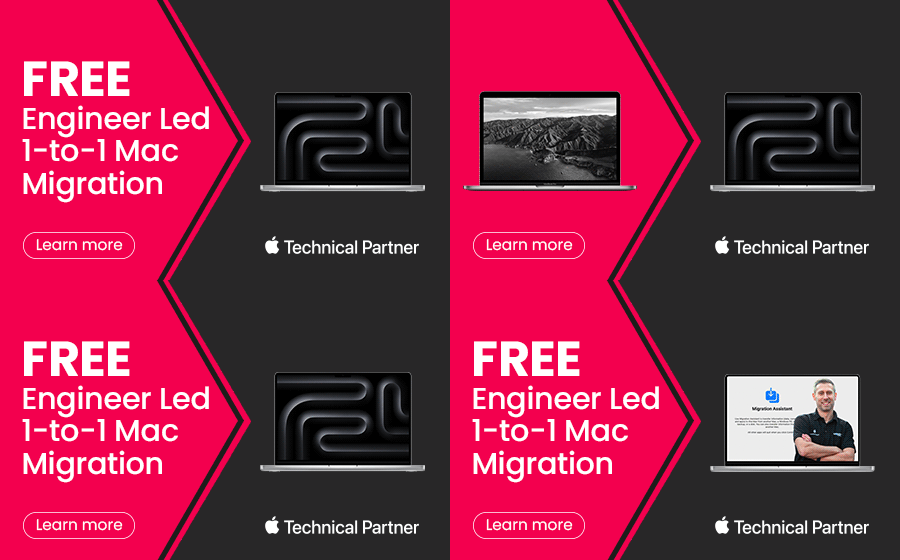
Free 1‑to‑1 Mac Migration with a Dedicated Apple Expert
Switching to a new MacBook should be exciting—not stressful.
At HardSoft, we’re proud to be an Approved Apple Technical Partner, and we know that while Apple users are clever, migrating to a brand‑new Mac can still take time and effort. That’s why we’re offering Free 1‑to‑1 Mac Migration with a Dedicated Apple Expert with every new order of an Apple MacBookPro (14 or 16 inch).
What’s Included?
When you purchase a new Apple MacBook Pro (14 or 16 inch) through HardSoft, you’ll receive:
A dedicated Apple‑certified expert
One‑to‑one Mac migration support
Personalised guidance tailored to your setup
A smooth, secure transition with minimal disruption
Whether you’re upgrading from an older Mac or moving from another device, we’ll make sure your files, applications, and settings are transferred seamlessly—so you can get straight to work.
How It Works
We’ve made the process simple:
Your dedicated Apple expert will guide you through the migration process, ensuring everything is set up exactly as you need it.
Order your new Apple MacBook Pro (14 or 16 inch) from HardSoft
Add the coupon code for Free Mac Migration at checkout, or ask your HardSoft Account Manager to include it on your next order.
Receive your new MacBook. Once your device is delivered, you’re ready to begin.
Book a Microsoft Teams meeting. Schedule a convenient 1‑to‑1 session with one of our HardSoft Solutions Engineers.
Why Choose HardSoft?
Approved Apple Technical Partner
Expert-led, personal support
No additional cost with your MacBook purchase
Designed for busy professionals and teams
We understand Apple inside and out—and we understand that your time matters. Our goal is to remove complexity, reduce downtime, and help you get the most from your new Mac from day one.
Ready to Get Started?
Order your new Apple MacBook with HardSoft today and take advantage of Free 1‑to‑1 Mac Migration with a Dedicated Apple Expert.
M4 vs M5: Which Apple Chip Makes Sense for Your Workload?
Apple continues to redefine performance across the Mac lineup. The M4 generation set new standards for efficiency and AI‑ready workflows, and the newer M5 chips push this even further with major gains in AI acceleration, GPU power, and memory bandwidth. This guide explores both M4 and M5 chips.
M4 vs M5 at a Glance
Apple’s M4 chips focused on efficiency gains, improved graphics, and stronger machine‑learning acceleration. The new M5 series, however, represents a much larger architectural leap, especially for AI.
M5 delivers up to 4× the peak GPU compute performance for AI vs M4 thanks to a new GPU architecture with a Neural Accelerator in every core.
M5 introduces Apple’s “super core”, the world’s fastest CPU core for single‑threaded tasks.
Unified memory bandwidth climbs to 153GB/s on the base M5, up from M4.
The M5 Pro and M5 Max introduce a new multi‑die Fusion Architecture for higher GPU scaling and professional workloads.
Let’s dive further into each of these powerhouse chips.
Apple M4 Chips Explained
What is the Apple M4 Chip?
Fast. M4 is a standout 21% faster than its predecessor, the M3 chip. Configurations are limited to a maximum 10-Core CPU and 10-Core GPU.
Most affordable. The M4 chip is the lowest-cost option when it comes to the new M4 processor range.
Good upgrades. The SSD on 14-inch MacBook Pro, Mac mini, and iMac can be upgraded to a maximum capacity of 2TB, and RAM to a maximum capacity of 32GB.
Great for most industries. M4 Apple MacBooks, Mac minis and Apple iMacs have a maximum 10-Core CPU and 10-Core GPU, and can support one external display, meaning they are suited to the day-to-day needs of most people — but perhaps not those that need an above average amount of storage space for their work.
Limited model choice. It’s worth noting that the M4 is exclusively available for Apple MacBook Pro 14″, Apple iMac and Mac mini — the 16” Apple MacBook Pro offers options for M4 Pro or M4 Max only.
What is the Apple M4 Pro Chip?
Faster. This version features an 14-Core CPU, providing a significant upgrade in processing power, and an 20-Core GPU. This makes M4 Pro products great for handling graphics-intensive tasks.
Mid-priced. Considering the price, this may not be the most budget-conscious option — but the extra cost is worth it for creative professionals, software developers, or anyone else that requires a high-powered machine than the standard M4 for their work.
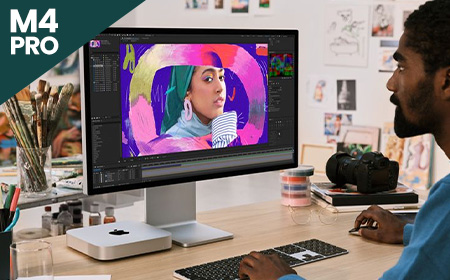
Better upgrades. RAM on M4 Pro models can be upgraded to a maximum of 64GB, enabling users to tackle larger projects on the go than the standard M4. The SSD can be expanded to a maximum capacity of 8TB on the mac mini and up to 4TB on the MacBook Pro 14 and 16”. Additionally, when opting for M4 Pro, you can choose a Space Black machine.
Great for creatives. The M4 Pro is significantly faster than the M4, with a maximum 14-Core CPU and 20-Core GPU, This makes the M4 Pro significantly more powerful for tasks like video editing, 3D rendering, and other graphics-intensive work.
Only available for MacBook Pro 14 and 16” and the Mac mini. iMac’s are only available with the standard M4 chip.
What is the Apple M4 Max chip?
Fastest option. This version offers a choice between a 16-Core CPU, a substantial increase in processing power compared to the M4 Pro. This processor option also incorporates a 40-Core GPU.
Highest priced option. Considering the price, this won’t be the most cost-friendly choice for most people. However, the extra cost is worth it for creative professionals that require a very fast and high-spec laptop for their work, the increased core count ensures faster processing times and smoother multitasking.
Best upgrades. With support for up to 128GB of unified memory, and an SSD capacity of up to 8TB, the M4 Max has the biggest capacity for upgrades of the three M4 chips. Additionally, when opting for M4 Max, you can choose a Space Black machine.
Great for high-end creative professionals. Equipped with a maximum 16-Core CPU and 40-Core GPU and the capacity to support up to four external monitors, M4 Max is ideal for creative professionals who need a high-powered machine with great graphics for tasks such as video editing. The M4 Max offers a nano-texture display option, which reduces glare and reflections, providing a clearer and more consistent viewing experience. This is particularly valuable for creatives who require precise colour accuracy and detail.
Only available for MacBook Pros. Currently, you can only purchase MacBook Pro 14″ and 16″ with this option – iMac’s are only available with the standard M4 chip while mac mini give you the option of M4 or M4 Pro.
Fast. M5 delivers a major speed boost with up to a 10‑core CPU (up to four super cores + six efficiency cores), offering up to 15% faster multithreaded performance than M4. Its new 10‑core GPU with a Neural Accelerator in each core provides over 4× the peak GPU compute performance for AI vs M4.
Good upgrades. The base M5 boosts unified memory bandwidth to 153GB/s, nearly 30% higher than M4. Devices using M5 also benefit from faster storage performance and next‑generation AI acceleration.
Great for most industries. With up to a 10‑core CPU, 10‑core GPU, and improved AI capabilities, M5 suits general business use, productivity, education, and creative light‑to‑medium workloads.
Limited model choice. The base M5 is currently found in select devices such as the 13-inch MacBook Air, 14‑inch MacBook Pro, and iPad Pro, while larger MacBook Pro models and pro workflows require M5 Pro or M5 Max.
Faster. M5 Pro introduces a new Fusion Architecture, combining two silicon dies for a major performance uplift. It features up to an 18‑core CPU and a next‑generation GPU with up to 20 cores, delivering up to 30% CPU improvement vs M4 Pro.
Not the most budget‑friendly. The M5 Pro sits firmly in the higher price bracket. However, some M5 MacBook Pro 14″ configurations are now £100 cheaper than the previous M4 Pro equivalents, specifically the 16GB RAM / 1TB SSD and 24GB RAM / 1TB SSD models. This makes these configurations unexpectedly better value than before.
Better upgrades. Unified memory bandwidth increases to 307GB/s, and SSD performance is up to 2× faster. The GPU includes a Neural Accelerator in each core, providing more than 4× peak GPU compute performance vs the previous generation.
Great for pro workflows. Ideal for data modelling, video and audio post‑production, coding, STEM applications, and AI‑enhanced tasks.
Limited model choice. M5 Pro is available only in the 14‑inch and 16‑inch MacBook Pro models and does not appear in entry‑level models or the MacBook Air.
What is the Apple M5 Max Chip?
Fastest. M5 Max scales performance further with an 18‑core CPU and up to a 40‑core GPU, offering the highest GPU compute in the M5 family. Its GPU architecture includes Neural Accelerators in every core and delivers over 4× the peak GPU compute performance vs M4 Max.
The most expensive option by far. M5 Max models sit at the very top of Apple’s pricing, with the 16‑inch M5 Max MacBook Pro starting from a significantly higher price point compared with previous generations. This chip is only worth the investment for users with extremely demanding workloads.
Good upgrades. Unified memory bandwidth reaches 614GB/s, the highest of any Apple Silicon laptop chip. GPU and media engine improvements double encoding engines and significantly boost ray‑tracing performance.
Great for demanding industries. Best suited to 3D animation, large‑scale AI/ML workloads, complex simulations, high‑end video workflows and other GPU‑intensive pro environments.
Limited model choice. M5 Max is exclusive to the 14‑inch and 16‑inch MacBook Pro models only.
M4 vs M5 – Device Compatibility Comparison
Swipe left/right to view the full table.
Device
M4
M4 Pro
M4 Max
M5
M5 Pro
M5 Max
MacBook Air 13"
Yes
No
No
Yes
No
No
MacBook Air 15"
Yes
No
No
Yes
No
No
MacBook Pro 14"
Yes
Yes
Yes
Yes
Yes
Yes
MacBook Pro 16"
No
Yes
Yes
No
Yes
Yes
iMac
Yes
No
No
No
No
No
Mac mini
Yes
Yes
No
No
No
No
M4 Chips in Summary
M4 is available for the MacBook Air 13″ and 15″, MacBook Pro 14″, Mac mini and iMac. This chip is a good choice for everyday use and less data-intensive workloads.
M4 Pro is the mid-level option, available for MacBook Pro 14″ and 16″ as well as the Mac mini. This chip is a good choice for people with slightly more data-intensive workloads, who require higher spec capacity.
M4 Max is the fastest and most efficient of the M4 lineup, and is available for MacBook Pro 14″ and 16″. Laptops with this chip are better suited for those with heavily data intensive workloads, and creative professionals who need a high-powered laptop with a lot of storage space, as these laptops offer the most upgrades.
M5 Chips in Summary
M5 is available for the 13-and 15-inch MacBook Air, 14‑inch MacBook Pro, as well as iPad Pro — giving it broad appeal across both laptop and mobile productivity devices. It is the entry‑level M5 option and a strong choice for everyday business users who want improved AI performance and modern speed.
M5 Pro is the mid-tier option and is exclusive to the 14‑inch and 16‑inch MacBook Pro models. It introduces Apple’s new Fusion Architecture, an 18‑core CPU, and a more powerful GPU, making it ideal for professionals handling more demanding workloads such as video production, coding, and multi‑tasking.
M5 Max is the top‑tier option for the M5 generation and is also exclusive to the 14‑inch and 16‑inch MacBook Pro. With an 18‑core CPU, up to 40‑core GPU and massive memory bandwidth, it is best suited to high‑end creative professionals, AI developers, and users working with extremely intensive graphics or simulation workloads.
Shepherd MDM is HardSoft’s proprietary Mobile Device Management (MDM) solution, designed specifically for Apple devices and tailored to meet the needs of small to medium-sized businesses.
What Is Shepherd MDM?
Shepherd is a cloud-based MDM system that allows businesses to:
Shepherd MDM is a robust, affordable, and user-friendly solution for businesses managing Apple devices. Its seamless integration with Apple Business Manager and rich feature set make it an ideal choice for SMEs looking to enhance security, streamline operations, and future-proof their IT infrastructure.
For more detailed guidance, explore the full blog series linked throughout this guide.
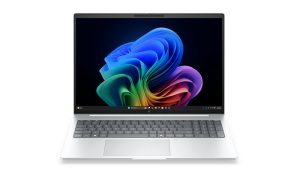
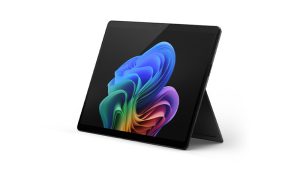
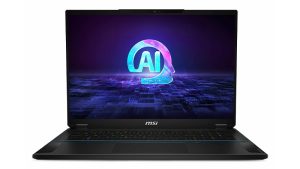
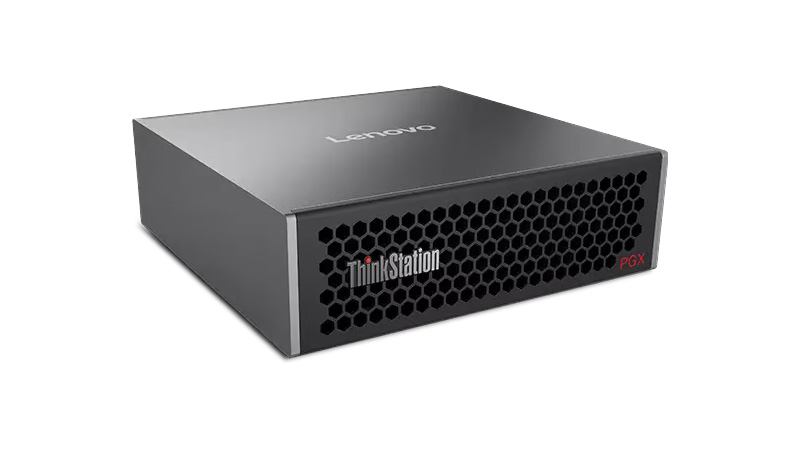
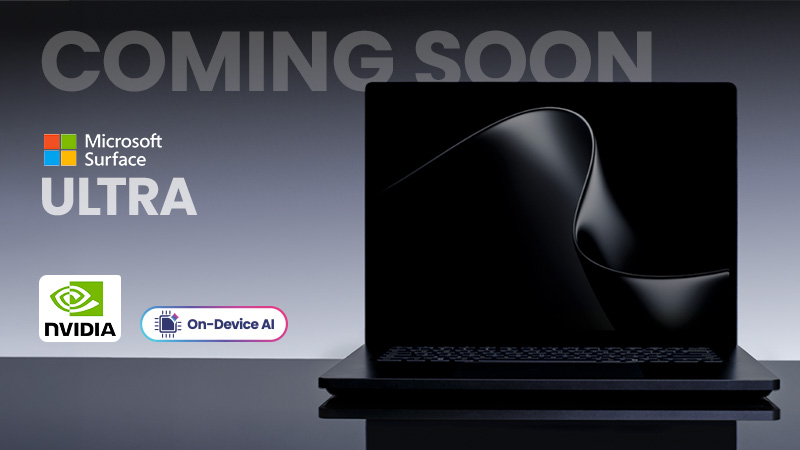
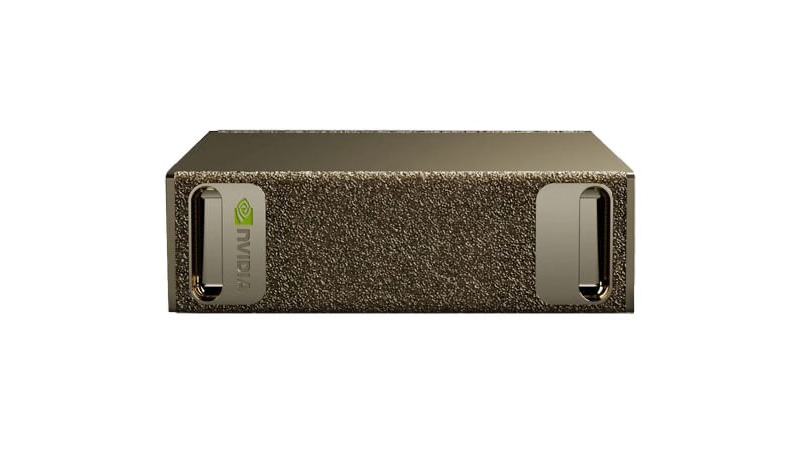
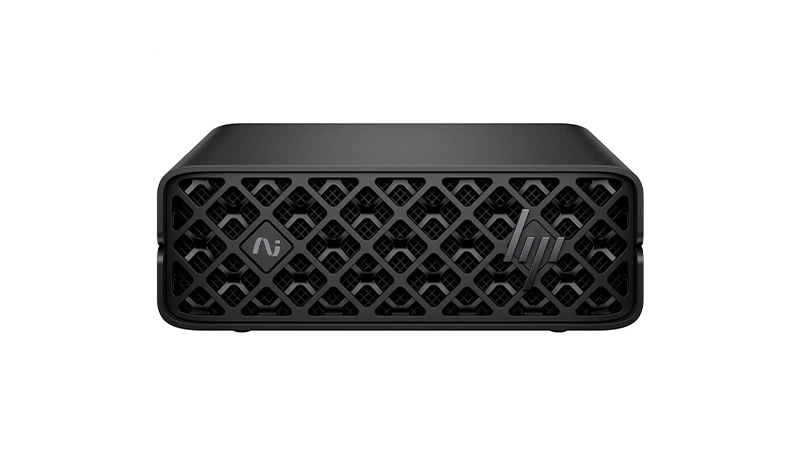
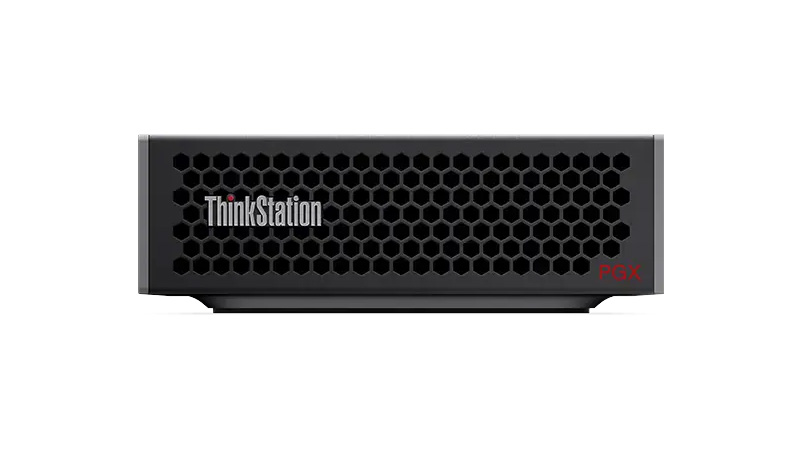
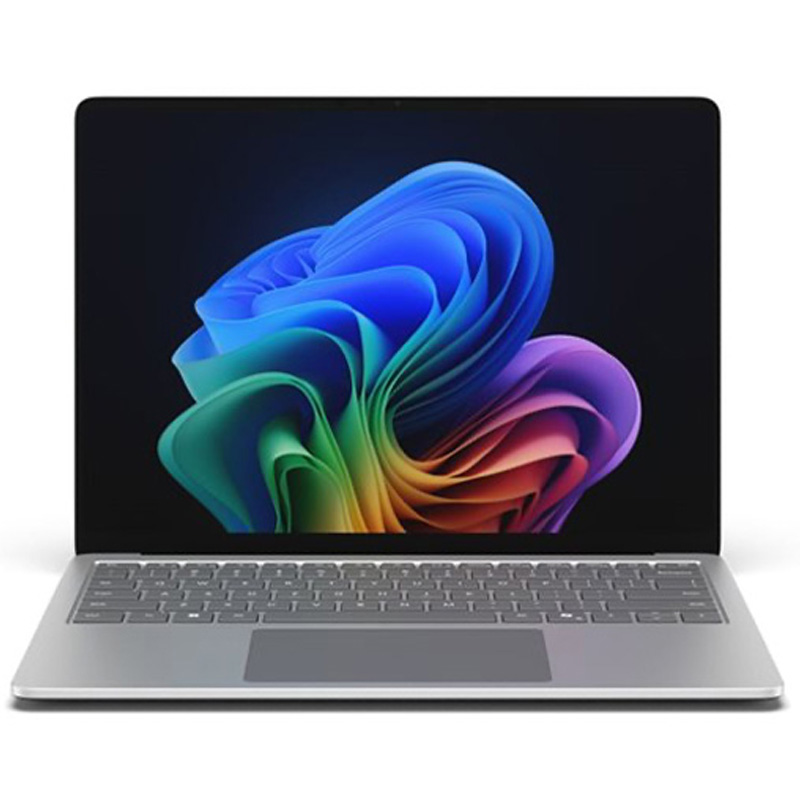
Unlock the power of AI with flexible supercomputer and AI workstation leasing. Featuring NVIDIA-powered systems, AI-ready PCs, Copilot+ devices and Apple Intelligence technology, these high-performance solutions are built for machine learning, advanced analytics, local AI models and demanding professional workloads. Benefit from powerful GPUs, high-speed memory, enterprise security and predictable monthly payments without the cost of traditional infrastructure.
Run AI locally with faster performance and lower costs.
Get the latest Apple, Windows, and premium devices with affordable monthly plans, full support, and upgrade options—designed to keep your business moving forward.
Navigating the world of technology can be overwhelming, with countless brands and options to consider.
Our buying guides are here to help you choose the perfect devices and solutions for your business.